> For the complete documentation index, see [llms.txt](https://docs.p0.dev/llms.txt). Markdown versions of documentation pages are available by appending `.md` to page URLs; this page is available as [Markdown](https://docs.p0.dev/access-management/just-in-time-access/approving-access.md).
# Approving access
This page describes how to review and approve just-in-time access requests
This page walks you through the lifecycle of an access request and review.
* :gear: [Configuring approvals](#configuring-approvals)
* :bell: [Request notifications](#request-notifications)
* :white\_check\_mark: [Approving (and denying) access](#approving-and-denying-requests)
* :thinking: [Reviewing requests](#reviewing-requests)
## :gear: Configuring approvals
There are two ways to configure approvals with P0:
* Default approvals
* Access policies
### Default approvals
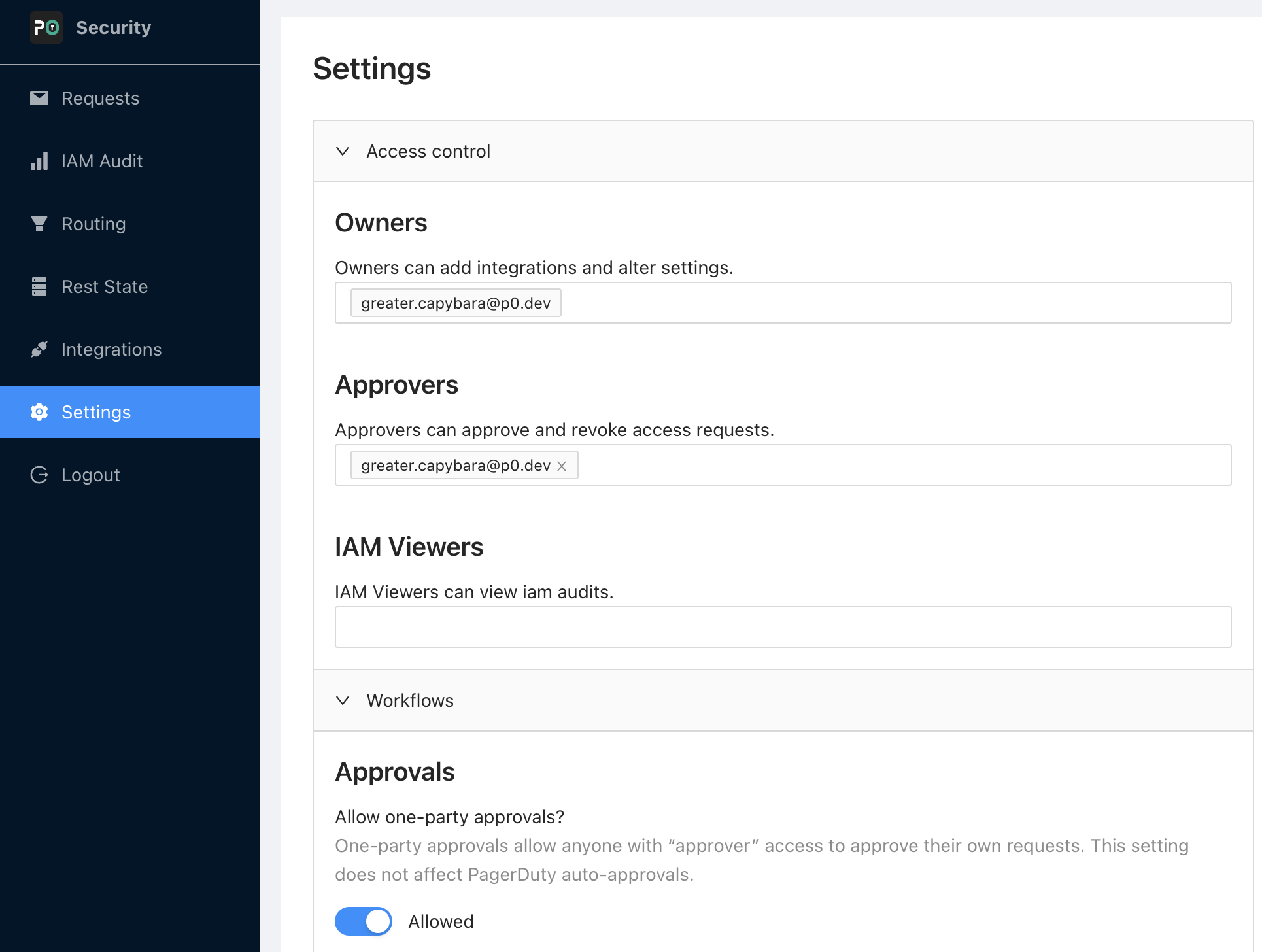
To use the default approvals, you must configure who can approve and revoke access requests. Do this on [p0.app](https://p0.app)'s "P0 Management" page, under "Access control".
Configure *who* can approve access requests by entering approvers' emails in the "Security Reviewers" section. Approvers must have accounts in Slack using the same email addresses.
{% hint style="info" %}
Approvers' email addresses may be from outside your domain.
{% endhint %}
#### Two-party and one-party approvals
By default, a requestor cannot approve their own access requests. If you want to allow requestors to approve their own requests, allow one-party approvals.
#### Auto approvals
In addition to approvals by humans, P0 also allows you to automatically approve requests if the requestor is currently on-call on an escalation policy. See [Approval Integrations](/integrations/approval-integrations.md) for more details.
#### Escalated approvals
In addition to normal approval flow, P0 allows the requestor to escalate the request using PagerDuty or Incident.io and notify on-call users to approve pending requests. See [Approval Integrations](/integrations/approval-integrations.md) for setup details.
### Access policies
If you need more fine-grained control over approvals based on who is requesting access, and to what, use access policies. See [Configuring access policies](/access-management/just-in-time-access/access-policies/configure-your-first-access-policy.md) for more details.
The remainder of this guide assumes your organization is using default approvals.
## :bell: Request notifications
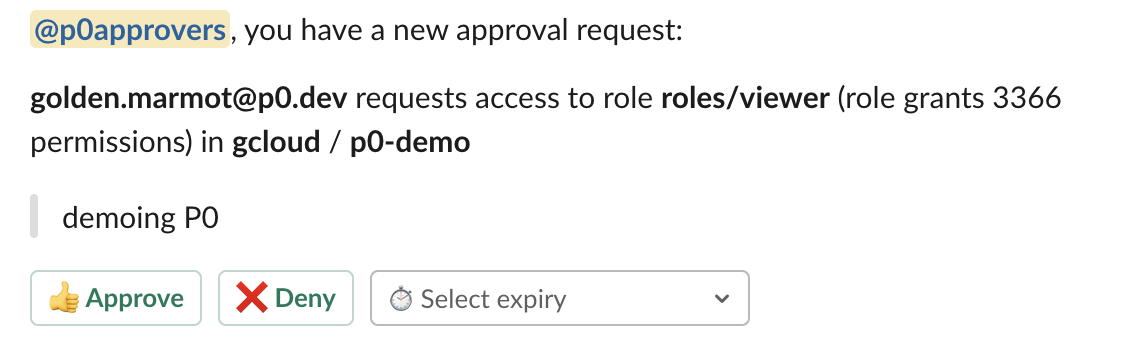
When an access request is made, P0 creates an approval message in your Slack integration's configured channel.
With default approvals, P0 mentions the `@p0approvers` Slack group, which contains all configured approvers.
If you use access policies with directory group approvers, P0 instead DMs each approver with a link to the approval message.
## :white\_check\_mark: Approving (and denying) requests
To **Approve** this request, first choose an access duration from the "Select expiry" dropdown, then click "Approve".
{% hint style="warning" %}
If you are not in the P0 approvers group, you will receive an error when attempting to approve or deny access.
{% endhint %}
To **Deny** this request, click "Deny".
#### Requesting further justification
If the requestor's justification for requesting access is incomplete or needs follow-up, reply to the request message *in a thread*. The request conversation thread is linked to the access request, and this discussion will be available in future access reviews.
## :thinking: Reviewing requests
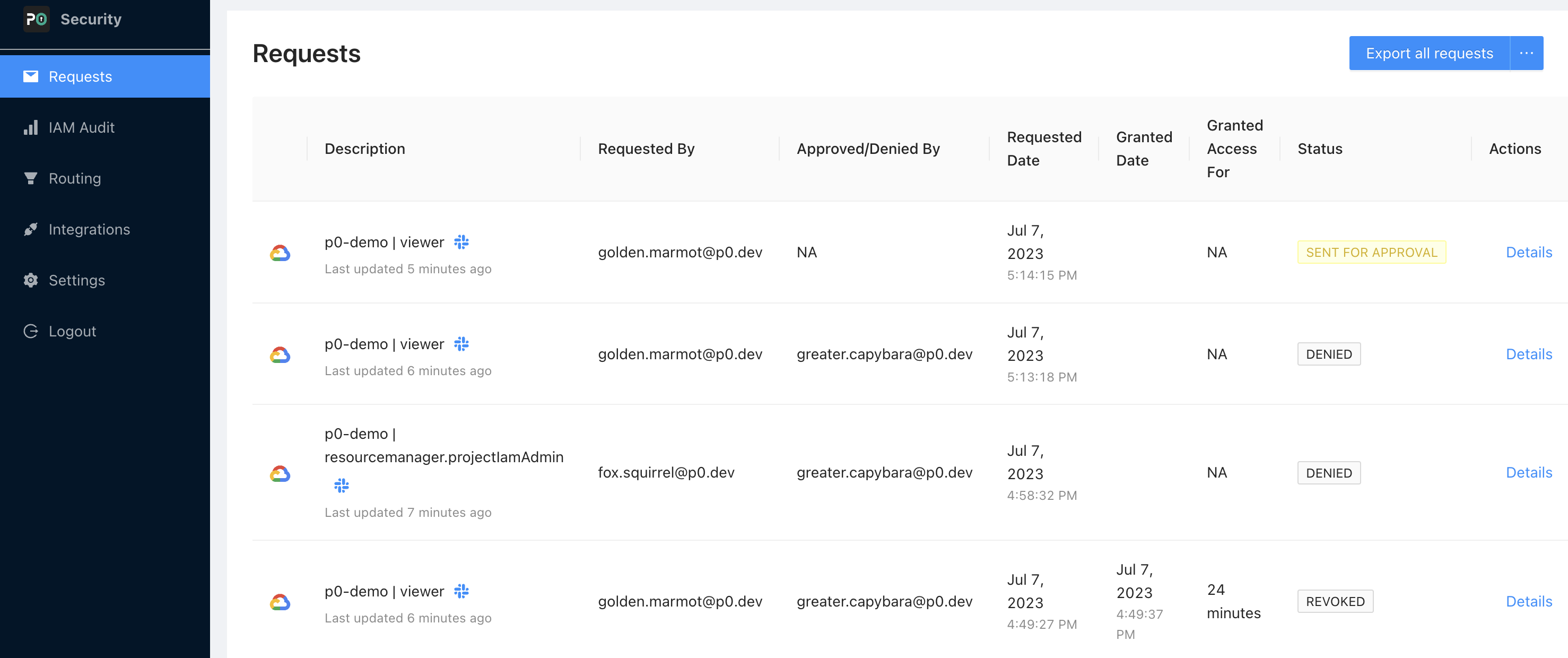
You can review all requests made via P0, whether approved or denied, by visiting p0.app and navigating to "Access Management". You see a dashboard of all requests:
Clicking the Slack icon in the request description will take you to the approval-message conversation, where you can view any conversation around justification.
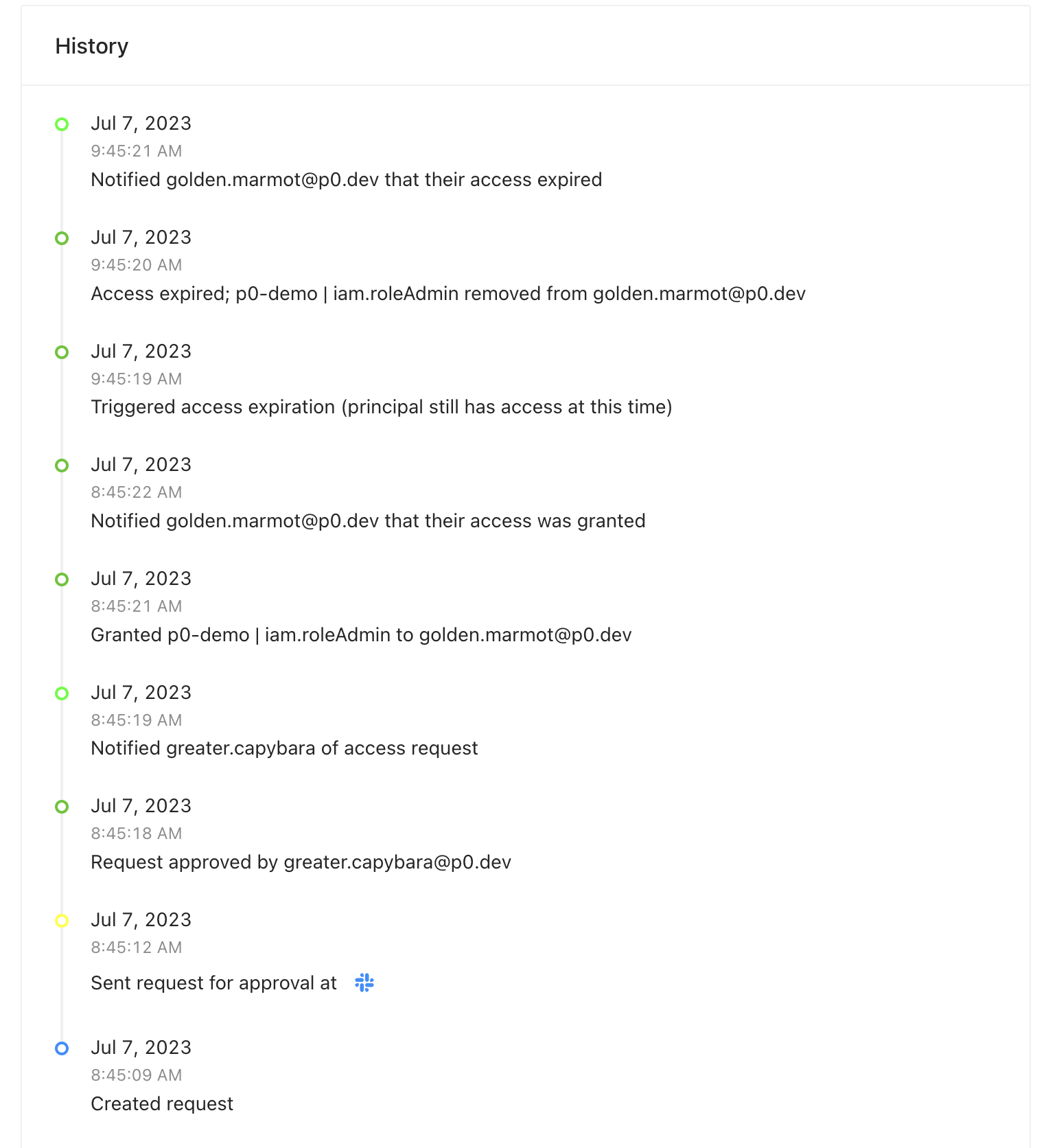
You can also get more details on the lifecycle of an individual grant by clicking on a request row to open the "Request Details" drawer:
Finally, you can export all requests as a tab-separated values list (`.tsv`) by clicking "Export requests".