> For the complete documentation index, see [llms.txt](https://docs.p0.dev/llms.txt). Markdown versions of documentation pages are available by appending `.md` to page URLs; this page is available as [Markdown](https://docs.p0.dev/access-management/just-in-time-access/requesting-access.md).
# Requesting access
Request just-in-time access to cloud resources using P0.
Need temporary access to a cloud resource? P0 lets you request time-limited access that's automatically provisioned after approval and revoked when it expires.
You can request access through any of these methods:
| Method | Best for | Details |
| ------------------- | --------------------------------------------- | ----------------------------------------------------------- |
| **Slack** | Quick requests when you already use Slack | [Request via Slack](#request-via-slack) |
| **Microsoft Teams** | Quick requests when you already use Teams | [Request via Microsoft Teams](#request-via-microsoft-teams) |
| **Web app** | Browser-based requests without Slack or Teams | [Request via the web app](#request-via-the-web-app) |
| **CLI** | Terminal workflows and automation | [Request via the CLI](#request-via-the-cli) |
## How access requests work
1. You **request** access to a specific resource, role, or permission.
2. P0 **routes** the request to the appropriate approver based on your organization's policies.
3. An approver **reviews and approves** (or denies) the request.
4. P0 **provisions** access automatically and notifies you.
5. Access **expires** after the approved duration, or you relinquish it early.
{% hint style="info" %}
Most IAM systems have a propagation delay of 10-60 seconds after access is provisioned before you can use it.
{% endhint %}
## Request via Slack
If your organization has installed the [Slack integration](/integrations/notifier-integrations/slack.md), you can request access directly from Slack.
### Using the Slack request modal
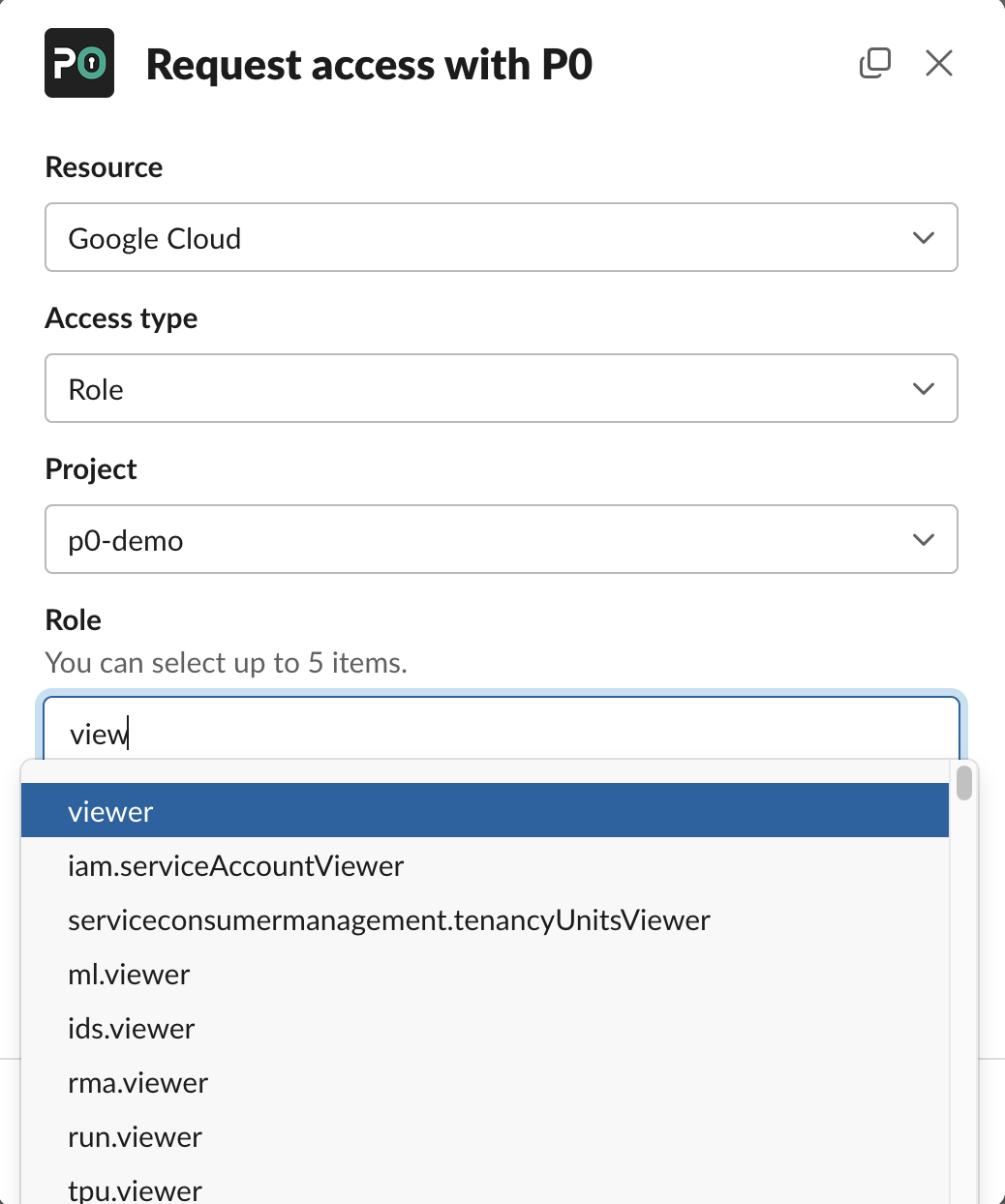
Open the interactive modal to discover available resources and access modes:
* Type `/p0 request` in any Slack channel
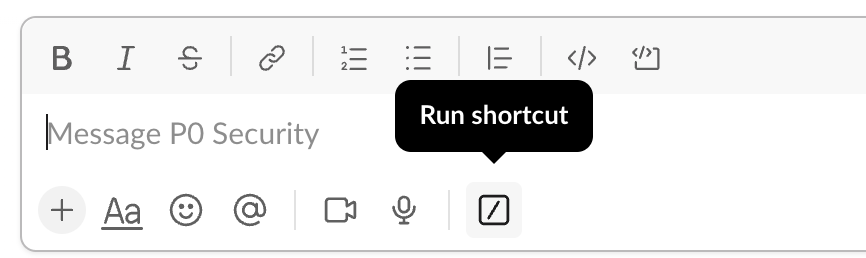
* Or click the **Run Shortcut** icon in the message draft bar, then search for and select **Request access**
Select a resource and access type, then fill out the remaining fields. You may skip optional fields.
{% hint style="info" %}
The "reason" field is optional, but highly recommended. Filling this out helps your request get approved more quickly.
{% endhint %}
Once you've filled out all required fields, click **Request**. P0 then sends you a DM with details of your request.
### Using Slack slash commands
If you already know what you need, use slash commands for faster requests:
```
/p0 request gcloud role my-project viewer --reason "investigating production issue"
```
Add `--help` to any command to see available options. You can also type an incomplete command (for example, `/p0 request aws policy`) to open a filled modal.
## Request via Microsoft Teams
If your organization has installed the [Microsoft Teams integration](/integrations/notifier-integrations/microsoft-teams.md), you can request access by messaging the P0 Security bot directly in Teams.
### Sending a request message
Open a direct message with the **P0 Security** bot and type your request. For example:
```
request gcloud role my-project viewer --reason "investigating production issue"
```
The bot presents an interactive card where you can fill in resource details, select an access type, and submit your request.
### Supported commands
You can use the following commands when messaging the P0 Security bot:
| Command | Purpose |
| --------- | ------------------------------------ |
| `request` | Request access to a resource |
| `ls` | List available resources |
| `help` | Display available commands and usage |
Type `help` to see the full list of available commands and options.
## Request via the web app
1. Open the [P0 app](https://p0.app) and navigate to **Access Management**.
2. Click **Request Access** in the header.
3. Fill in the resource, role, duration, and reason.
4. Submit for approval.
You can also repeat an earlier request without re-entering its details: open the request from the **Access Management** page and click **Request for me** to open the modal prefilled with that request's values.
For a detailed walkthrough, see [Web request modal](/access-management/just-in-time-access/requesting-access/web-request-modal.md).
## Request via the CLI
The [P0 CLI](/p0-cli/installing-p0-cli.md) provides command-line access requests that integrate with your terminal workflow.
After [installing](/p0-cli/installing-p0-cli.md) and [logging in](/p0-cli/p0-commands-and-usage/p0-login.md), use these commands:
| Command | Purpose |
| ----------------------------------------------------------------------------------------------- | -------------------------------------------------------- |
| [`p0 request`](/p0-cli/p0-commands-and-usage/p0-request.md) | Request access to any supported resource |
| [`p0 aws role assume`](/p0-cli/p0-commands-and-usage/p0-aws-role-assume.md) | Request and assume an AWS IAM role |
| [`p0 aws permission-set assume`](/p0-cli/p0-commands-and-usage/p0-aws-permission-set-assume.md) | Request and assume an AWS Identity Center permission set |
| [`p0 ssh`](/p0-cli/p0-commands-and-usage/p0-ssh.md) | Request and establish an SSH session |
| [`p0 kubeconfig`](/p0-cli/p0-commands-and-usage/p0-kubeconfig.md) | Request Kubernetes access and configure kubeconfig |
Use `--wait` with any request command to block until the system provisions access, then automatically execute the underlying tool command.
## Request access to specific resources
The methods described earlier in this topic work for every resource type. For request syntax, access levels, and details specific to a resource, see its integration guide:
| Resource | Guide |
| ------------------- | -------------------------------------------------------------------------------------------------------------------- |
| AWS | [Requesting AWS access](/integrations/resource-integrations/aws/requesting-access.md) |
| Google Cloud | [Requesting Google Cloud access](/integrations/resource-integrations/google-cloud/requesting-access.md) |
| Microsoft Azure | [Requesting Microsoft Azure access](/integrations/resource-integrations/microsoft-azure/requesting-access.md) |
| Kubernetes | [Requesting Kubernetes access](/integrations/resource-integrations/kubernetes/requesting-access.md) |
| SSH | [SSH](/integrations/resource-integrations/ssh.md) |
| PostgreSQL | [Requesting PostgreSQL access](/integrations/resource-integrations/postgresql-new/requesting-postgresql-access.md) |
| MySQL | [Requesting MySQL access](/integrations/resource-integrations/mysql/requesting-access.md) |
| Snowflake | [Snowflake](/integrations/resource-integrations/snowflake.md) |
| GitHub | [Requesting GitHub access](/integrations/resource-integrations/github/requesting-access.md) |
| Salesforce | [Requesting Salesforce access](/integrations/resource-integrations/salesforce/requesting-access.md) |
| Cloudflare | [Requesting Cloudflare access](/integrations/resource-integrations/cloudflare/requesting-access.md) |
| Grafana Cloud | [Requesting Grafana Cloud access](/integrations/resource-integrations/grafana-cloud/requesting-access.md) |
| Oracle Cloud | [Requesting Oracle Cloud access](/integrations/resource-integrations/oracle-cloud/requesting-access.md) |
| Tailscale | [Requesting Tailscale access](/integrations/resource-integrations/tailscale/requesting-access.md) |
| Cisco Secure Access | [Requesting Cisco Secure Access](/integrations/resource-integrations/cisco-secure-access/requesting-access.md) |
| Microsoft Entra ID | [Requesting Microsoft Entra ID access](/integrations/directory-integrations/microsoft-entra-id/requesting-access.md) |
For the full list of supported resources, see [Resource integrations](/integrations/resource-integrations.md).
## Discussing your request with approvers
After you submit a request, a message appears in your organization's P0 approval channel (in Slack or Microsoft Teams) asking for approval. Your approver may:
* Approve or deny the request immediately
* Respond in a thread to ask for more information
{% hint style="info" %}
You can't approve your own requests unless you are a configured approver *and* your organization allows one-party approvals.
{% endhint %}
If your organization has configured automatic approvals and you meet the approval conditions (for example, you are on-call on a specified PagerDuty escalation policy), access is granted automatically.
## Gaining access
After approval, P0 provisions access and notifies you. Propagation times vary by system:
| System | Time to use |
| --------------------------------------- | -------------------------------- |
| AWS | 10-15 seconds |
| Directories (Okta, Entra ID, Workspace) | Depends on SCIM propagation time |
| Google Cloud | 30 seconds - 1 minute |
| PostgreSQL | Immediate |
| Snowflake | Immediate |
## Relinquishing access
Access expires automatically after the approved duration. If you finish early, click the **Relinquish** button in your P0 notification (in Slack or Microsoft Teams) or on the **Access Management** page in the P0 app to give up access. This helps avoid unintentional use of elevated permissions.
## Request on behalf of someone else
You can submit access requests for a colleague or service account. See [Request for another party](/access-management/just-in-time-access/requesting-access/for-another-party.md).
## Related
* [Approving access](/access-management/just-in-time-access/approving-access.md) -- How approvers review and manage requests
* [Access policies](/access-management/just-in-time-access/access-policies.md) -- How your organization controls who can request what
* [Pre-approving access](/access-management/just-in-time-access/approving-access/pre-approving-access.md) -- Set up automatic approvals for specific scenarios