> For the complete documentation index, see [llms.txt](https://docs.p0.dev/llms.txt). Markdown versions of documentation pages are available by appending `.md` to page URLs; this page is available as [Markdown](https://docs.p0.dev/agentic-access/agentic-gateway/gateway/deploy/install-from-the-p0-console.md).
# Install from the P0 console
Deploy the gateway with the Terraform the P0 console generates, and register it with P0 in the same pass.
The console installer collects your environment's details, generates the Terraform that deploys the gateway, and registers the gateway with P0 in the same pass. Before you start, check the [Deploying the gateway](/agentic-access/agentic-gateway/gateway/deploy.md#prerequisites).
## Where to run these commands
The `terraform` and `kubectl` commands below run anywhere that can reach your cluster's API server: your own machine, a cloud shell such as AWS CloudShell, Google Cloud Shell or Azure Cloud Shell, a bastion host, or a Terraform pipeline. A cloud shell is usually quickest for an evaluation, since it comes with your cloud credentials and most of the tools. AWS CloudShell has `kubectl` but not `terraform`, so [install it](https://developer.hashicorp.com/terraform/install) into your home directory, the one place that survives between sessions.
Wherever you run them, that machine has to reach `registry-1.docker.io` to pull the chart, and `registry.terraform.io`, `releases.hashicorp.com` and `github.com` for the module and providers.
{% hint style="warning" %}
AWS CloudShell deletes your home directory in a region after 120 days without a session there, and Google Cloud Shell does the same after 120 days without use. `terraform.tfstate` lives in that directory by default. Without the file, Terraform cannot upgrade or remove the gateway later. Open the shell again before the 120 days pass, or keep the state in a remote backend such as [S3](https://developer.hashicorp.com/terraform/language/backend/s3) or [Cloud Storage](https://developer.hashicorp.com/terraform/language/backend/gcs).
{% endhint %}
## 1. Start the installer
Navigate to **Integrations** on [p0.app](https://p0.app) and select **Agentic gateway** under **Resources**. The page lists four components, each labelled beta:
| Component | What it does | Needed to install the gateway? |
| --------------------------------------------------------------- | ---------------------------------------------------------------------------------------- | ---------------------------------------------------- |
| **Gateway** | The runtime itself, deployed into your cluster. | Yes. This page installs it. |
| **MCP server** | Declares an MCP server the gateway fronts. | No. Configure one after the gateway is running. |
| **A2A bridge** | Puts an upstream agent host behind the gateway, so agent-to-agent calls pass through it. | No. |
| [Log provider](/agentic-access/agentic-gateway/log-provider.md) | Points P0 at the logs holding the gateway's tool-call activity. | No. The gateway still ships access logs without one. |
The other three configure what runs behind the gateway, and each needs one to attach to, so start here. The beta label means a component may have limited features or support. Contact P0 with questions about a specific component before you build on it.
Choose the **Gateway** component and click **Add gateway**. Fill in the form, then click **Next**:
* **Gateway identifier**: a name for this gateway within P0. Use lowercase letters, digits, and hyphens, starting and ending with a letter or digit, up to 53 characters. It also becomes the Helm release name and the Gateway class, and, for a P0-hosted domain, part of the hostname.
* **Domain hosting**: how your gateway's public hostname and DNS records are managed.
* **P0-hosted domain**: P0 assigns a hostname derived from your organization and gateway identifier, and creates its DNS record for you in step 4. Nothing to register or manage yourself.
* **Self-hosted domain**: you bring your own domain. Enter the **Agentic gateway URL** where your gateway will run, and, if your OAuth/JWKS endpoint runs on a different host than the gateway itself, the **OAuth server endpoint**. It defaults to the gateway URL. You create the DNS record yourself in step 4.
* **Certificate contact email**: the address that receives expiry and renewal notices for your gateway's HTTPS certificate. Not published.
* **Identity provider client ID**: the OAuth 2.0 client ID your users sign in with, from your identity provider. The client must allow the `openid`, `email`, and `profile` scopes. On a provider with a consent screen such as Google, the screen has to be configured before anyone signs in. An existing client works as well as a new one if its authorized redirect URIs include `https://`, the gateway's own URL. Adding that URI to a client's existing list doesn't disturb its other entries. If you reuse a client that other applications also use, removing the URI is part of tearing this gateway down. See [Gateway](/agentic-access/agentic-gateway/gateway.md#sign-in-fails-with-a-redirect-uri-mismatch) if sign-in fails after you enter this client.
* **Gateway storage**: where the bundled PostgreSQL, VictoriaLogs and Valkey keep their data. Valkey holds users' sign-ins to SaaS MCP servers and the OAuth credentials admins register for headless agents.
* **Kubernetes storage class**: enter the block storage class your cluster provides in **Storage class name**. The console uses this class for all three, and the class must encrypt disks. Use `standard-rwo` on GKE or `managed-csi` on AKS, which encrypt by default. On EKS, use the encrypted `gp3` class from [Deploying the gateway](/agentic-access/agentic-gateway/gateway/deploy.md#standard-eks-storage). On an EKS Auto Mode cluster, this is the class you create in [Deploying the gateway](/agentic-access/agentic-gateway/gateway/deploy.md#eks-auto-mode-storage).
* **No persistent storage (proof of concept only)**: for a cluster that has no storage class. The gateway loses its data whenever a pod is rescheduled. That includes sign-ins to SaaS MCP servers and the OAuth credentials admins registered for headless agents. Choose this only to evaluate the gateway. See [Deploying the gateway](/agentic-access/agentic-gateway/gateway/deploy.md#evaluating-without-a-storage-class).
* **Namespace** (optional): defaults to `p0-agentic-gateway`.
{% hint style="info" %}
User sign-in federates to your identity provider over OpenID Connect, and Google is the default. To use a different provider, deploy with the generated Terraform first, then add `authServer.oidcIssuer` (and any other provider-specific values) to the module's `values` before you apply. See [Deploying the gateway](/agentic-access/agentic-gateway/gateway/deploy.md#user-sign-in-settings).
{% endhint %}
Clicking **Next** assigns this gateway a P0 service account. The Terraform on the next page already authorizes that account to call your gateway's management API, so there is nothing to reconcile by hand.
## 2. Deploy with the generated Terraform
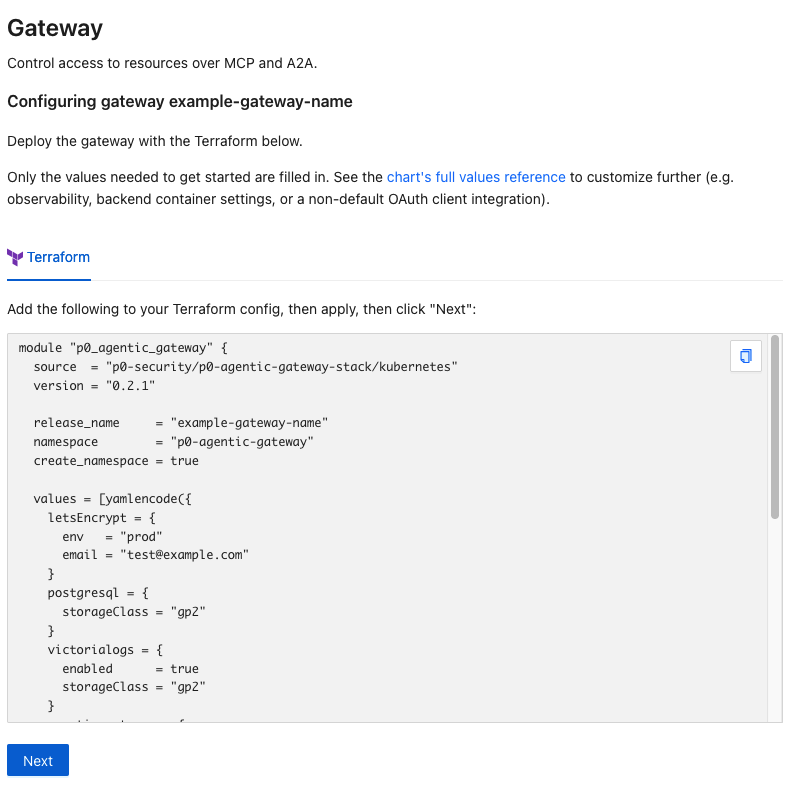
The console now shows a Terraform snippet, pre-filled with everything from step 1 plus your tenant's P0 URL and audience and the assigned service account:
{% hint style="info" %}
**If you don't already use Terraform**, create a working directory and run it from there. Terraform reads every `.tf` file in the directory it runs in.
```bash
mkdir p0-gateway && cd p0-gateway
kubectl config current-context
```
Put the output of `kubectl config current-context` in the `config_context` field of the provider block below, then save the provider block and the console's snippet together in a file named `main.tf`. Run `terraform init` and `terraform apply` in that directory.
Applying writes a `terraform.tfstate` file next to `main.tf`, recording what Terraform created. Keep it. Without it, Terraform cannot upgrade or remove this gateway later, and you would have to clean the cluster up by hand.
{% endhint %}
{% hint style="info" %}
Depending on how your Terraform project is set up, you may need to add the following provider configuration alongside the snippet the console provides:
```hcl
terraform {
required_version = ">= 1.7"
required_providers {
helm = {
source = "hashicorp/helm"
version = ">= 3.0"
}
}
}
provider "helm" {
kubernetes = {
config_path = "~/.kube/config"
config_context = ""
}
}
```
{% endhint %}
Copy it into your Terraform configuration and apply it:
```bash
terraform init
terraform apply
```
`terraform init` downloads the providers the configuration names. `terraform apply` shows you what it proposes to create and waits for you to type `yes`, then installs the gateway into your cluster. The apply takes a few minutes, most of it waiting for your cloud provider to give the gateway a load balancer address. It finishes with a line reading `Apply complete!` and a count of the resources it added.
Leave the console open. You return to it in step 4.
The snippet pins a module version for you. The module is published on the Terraform Registry as [p0-security/p0-ai-gateway-stack/kubernetes](https://registry.terraform.io/modules/p0-security/p0-ai-gateway-stack/kubernetes/latest), where you can see the other published versions and what each one installs.
Only the values needed to get started are filled in. To customize further for observability, backend container settings, or a non-default OAuth client, add values to the module's `values` block before applying. See the [Helm chart values reference](/agentic-access/agentic-gateway/gateway/deploy/chart-values.md).
{% hint style="warning" %}
The generated Terraform requests **production** Let's Encrypt certificates. Those are rate-limited per hostname, so if you expect to tear this deployment down and rebuild it repeatedly, set `letsEncrypt.env` to `staging` while you iterate, and switch it back to `prod` before you test the backends.
{% endhint %}
## 3. Set your OIDC client secret
`OIDC_CLIENT_SECRET` starts as a placeholder, since only you have the real value. Sign-in fails until you replace it, with the gateway itself showing [Gateway](/agentic-access/agentic-gateway/gateway.md#authentication-failed-please-try-again) if you skip this step or forget to restart.
{% hint style="info" %}
If you keep credentials in a vault, you can create `app-secrets` from there before you apply in step 2 and skip this step. See [Deploying the gateway](/agentic-access/agentic-gateway/gateway/deploy.md#secrets-the-chart-creates).
{% endhint %}
Run this on its own first. It prompts for your client secret and reads it without showing it, so the value stays off your screen and out of your shell history:
```bash
printf 'OIDC client secret: '; read -rs OIDC_CLIENT_SECRET; echo
```
Then write it into the Secret and restart the Auth Server:
```bash
kubectl -n p0-agentic-gateway patch secret app-secrets --type merge \
--patch-file /dev/stdin <-ensure-secrets
```
## 4. Register your gateway deployment
### Report the LoadBalancer address
Back in the console, the **LoadBalancer address** field asks for the address your cluster assigned the gateway. Read it back with the command the console shows:
```bash
kubectl -n p0-agentic-gateway get gateway agentic-gateway \
-o jsonpath='{.status.addresses[0].value}'
```
This reads back the address your cloud provider assigned the gateway's load balancer. An empty result means the address has not been assigned yet. Wait a minute and run it again.
Paste the result into the field. What happens next depends on the domain hosting you chose in step 1:
* **P0-hosted domain**: P0 creates the DNS record for your assigned hostname pointing at this address. You don't need to do anything else.
* **Self-hosted domain**: create the record with your own DNS provider. Use an `A` record for an IPv4 address, `AAAA` for IPv6, or `CNAME` if your cloud provider gave you a hostname instead of a static IP. If your gateway's hostname is a bare domain (a "zone apex"), your DNS provider likely can't accept a `CNAME` there. Use its `ALIAS`/`ANAME` equivalent, or a CNAME-flattening feature, instead.
Note your gateway's hostname before you move on. When formatted as `https://`, it is the gateway's OIDC issuer, and is used as the **OIDC provider URL** if you install [AWS OIDC](/agentic-access/credential-sources/aws-oidc.md) or [GCP Workload Identity Federation](/agentic-access/credential-sources/gcp-wif.md) to give agents cloud access.
### Provide the management tunnel public key
Every gateway deployment also runs a tunnel that dials out to P0 so P0 can reach the gateway's management API without any inbound port ever being opened. Registering its public key with P0 is required for every new gateway — it's what lets P0 manage a gateway with no public exposure: no resolvable DNS record, no issued TLS certificate.
Read the key from the running gateway:
```bash
kubectl -n p0-agentic-gateway exec deploy/braekhus-client -- cat /p0-files/jwk.public.json
```
Paste its output into the **Management tunnel public key** field. Once registered, P0 routes every management call for this gateway (sync, entitlements, activity log reads, and the reachability check below) through the tunnel instead of the gateway's direct URL.
The **Log provider** field is optional. It picks the [Log provider](/agentic-access/agentic-gateway/log-provider.md) P0 reads this gateway's tool-call activity from. Leave it empty to finish the install without activity. You can set it later by reopening the gateway.
Click **Finish**.
Clicking **Finish** also has P0 confirm it can reach the gateway over the tunnel.
{% hint style="info" %}
If the reachability check fails, nothing is lost. Confirm the gateway is running and can connect outbound to your configured tunnel host and port, and check the gateway's logs for connection errors, then reopen the gateway in the console and P0 retries the check.
{% endhint %}
## 5. Verify
Confirm the pods are running:
```bash
kubectl -n p0-agentic-gateway get pods
```
Every row should read `Running`, except the install's own jobs, which read `Completed`.
The management tunnel is only how P0 reaches the gateway. MCP clients may still connect to the gateway over public DNS, and some integrations — [AWS OIDC](/agentic-access/credential-sources/aws-oidc.md), for example — need the gateway's JWKS endpoint reachable directly, so DNS and the certificate matter regardless of whether you registered a tunnel key.
Confirm DNS resolves and the certificate is `Ready` (this may take several minutes):
```bash
kubectl -n p0-agentic-gateway get certificate
```
This asks whether Let's Encrypt has issued the gateway's TLS certificate, which it can only do once your DNS record resolves.
Desired output:
```
NAME READY SECRET AGE
gateway-tls True gateway-tls 15m
```
Confirm both backends respond through the gateway host over public DNS. Each `curl` command below makes one request and prints only the HTTP status code it got back. In order, expect:
* `200` from the Auth Server, on its exact-match route
* `200` from the gateway, on its catch-all route
* `301` from plain HTTP, which is redirected to HTTPS
Replace `` with your gateway's hostname:
```bash
curl -sS -o /dev/null -w '%{http_code}\n' https:///.well-known/oauth-authorization-server
curl -sS -o /dev/null -w '%{http_code}\n' https:///health
curl -sS -o /dev/null -w '%{http_code}\n' http:///health
```
The gateway appears in the console with the state **Installed** once the check passes.
{% hint style="info" %}
If `dig` resolves the gateway host but `curl` still fails, your machine may have cached an earlier `NXDOMAIN` response from before the DNS record existed.
Flush the local DNS cache, then retry:
* macOS: `sudo dscacheutil -flushcache` followed by `sudo killall -HUP mDNSResponder`
* Windows: `ipconfig /flushdns`, in either Command Prompt or PowerShell
* Linux: `sudo resolvectl flush-caches` on systemd-resolved, which most current distributions use
{% endhint %}
## Next steps
Once the gateway is deployed, configure the MCP servers it fronts:
* [AI gateway](/agentic-access/agentic-gateway.md): configure upstream MCP servers, enroll identity providers, and add A2A bridges.