> For the complete documentation index, see [llms.txt](https://docs.p0.dev/llms.txt). Markdown versions of documentation pages are available by appending `.md` to page URLs; this page is available as [Markdown](https://docs.p0.dev/getting-started/creating-an-environment.md).
# Creating an environment
Follow this guide to install P0 for data collection in your cloud provider, and to run your first posture and inventory scans.
## Install for IAM data collection
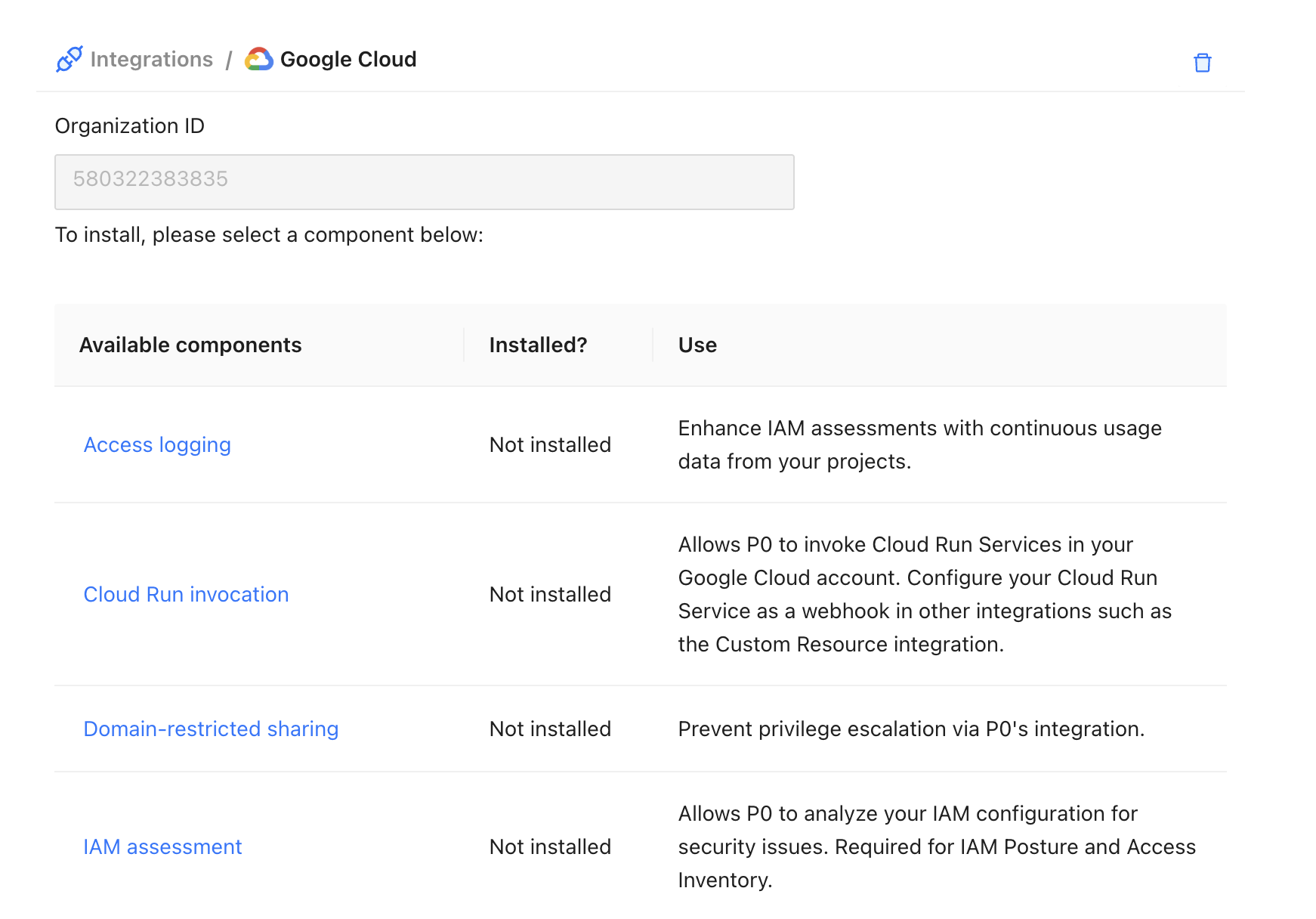
First, connect P0 to your cloud service provider by installing the **IAM assessment** integration.
{% hint style="warning" %}
You must install the **IAM assessment** integration to use **Access Inventory** or **Posture**. P0 collects the IAM data for both products through this integration. Install it on each cloud provider you want to assess before creating an environment.
{% endhint %}
{% hint style="warning" %}
If you have P0 installed for just-in-time access, you'll still need to follow this step, as data collection requires different permissions in your cloud provider.
{% endhint %}
Follow the cloud-specific guide for each provider you want to assess:
* Google Cloud: [IAM assessment](/integrations/resource-integrations/google-cloud/iam-assessment.md)
* AWS: [IAM assessment](/integrations/resource-integrations/aws/iam-assessment.md)
* Azure: [IAM assessment](/integrations/resource-integrations/microsoft-azure/iam-assessment.md)
Each guide walks you through navigating to your provider's integration page on the P0 app. After logging in to [p0.app](https://p0.app), select "Integrations," then your cloud provider. Choose "IAM assessment" and follow the steps to install P0.
{% hint style="info" %}
Make sure you have the ability to create custom roles and assign privileges in your cloud provider before beginning.
{% endhint %}
{% hint style="info" %}
To augment the usage data available to P0, you may also install "Access logging"
{% endhint %}
## Running your first scan
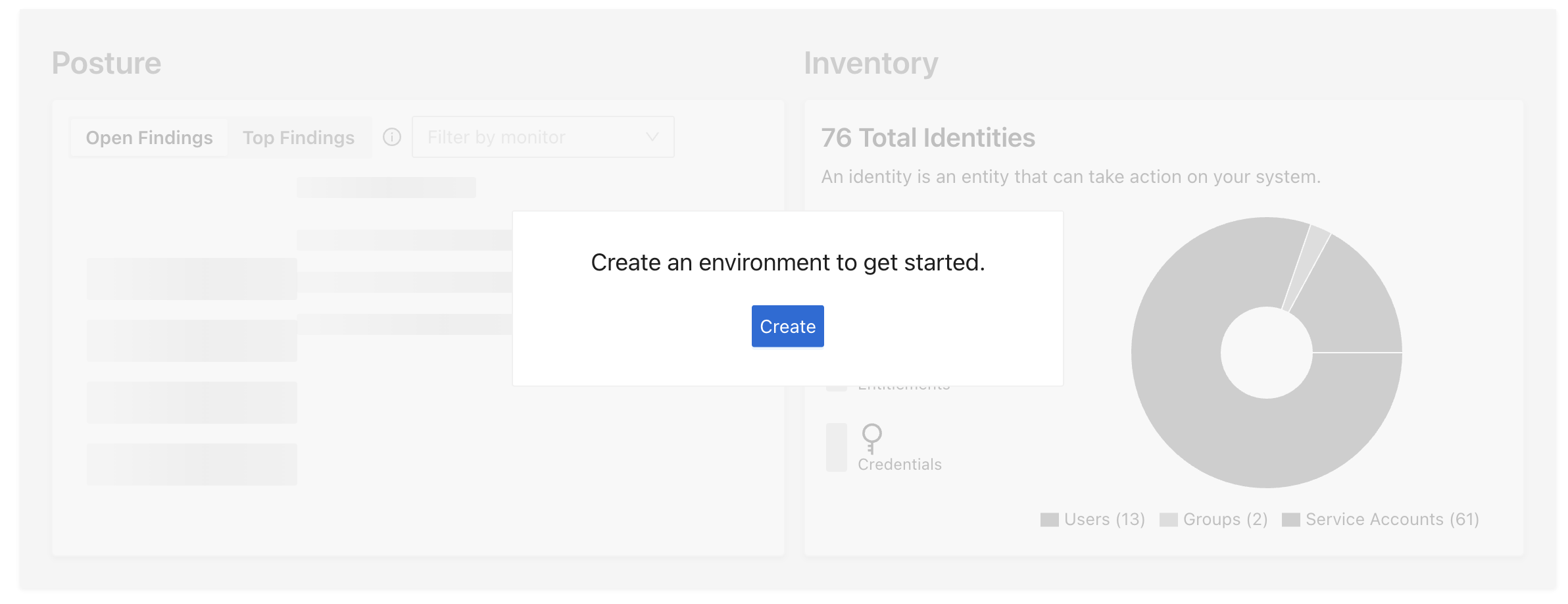
Navigate to "Dashboard", then select "Create" under "Create an environment to get started":
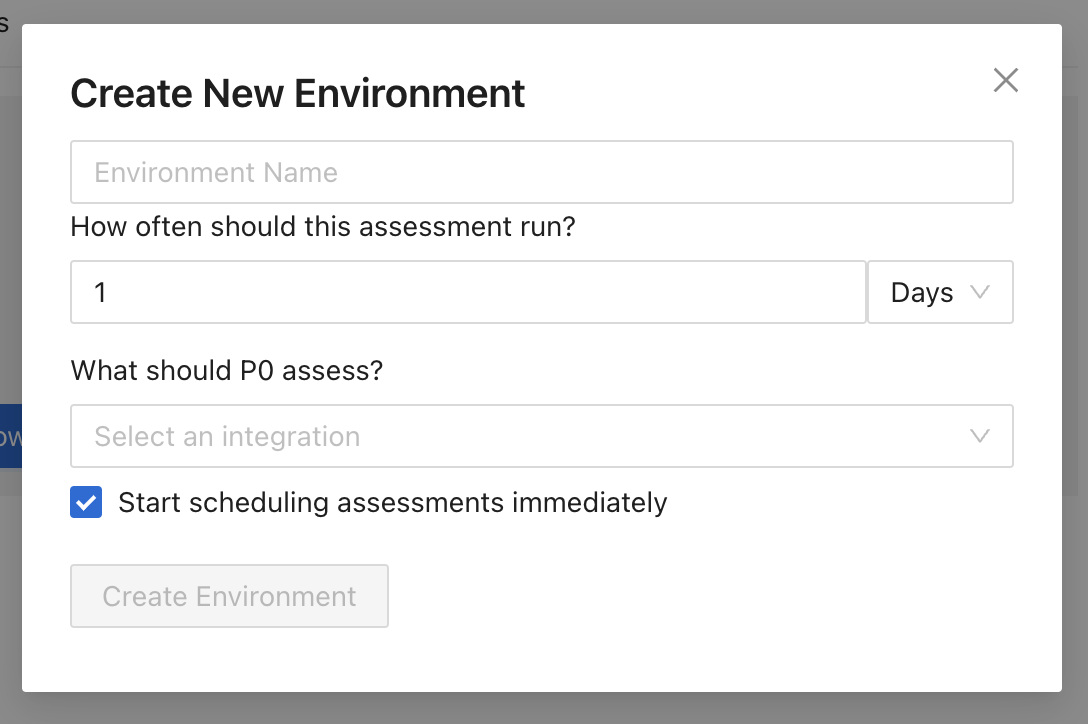
Choose a useful name, an assessment frequency, and the targets to assess (this will be the resources you installed in the previous step), then select "Create Environment".
{% hint style="info" %}
If you select "Start scheduling assessments immediately", the first scan runs as soon as the environment is created. If you would rather trigger the scan manually, you can uncheck this setting and navigate to "Settings" to run a scan once the environment is created.
{% endhint %}
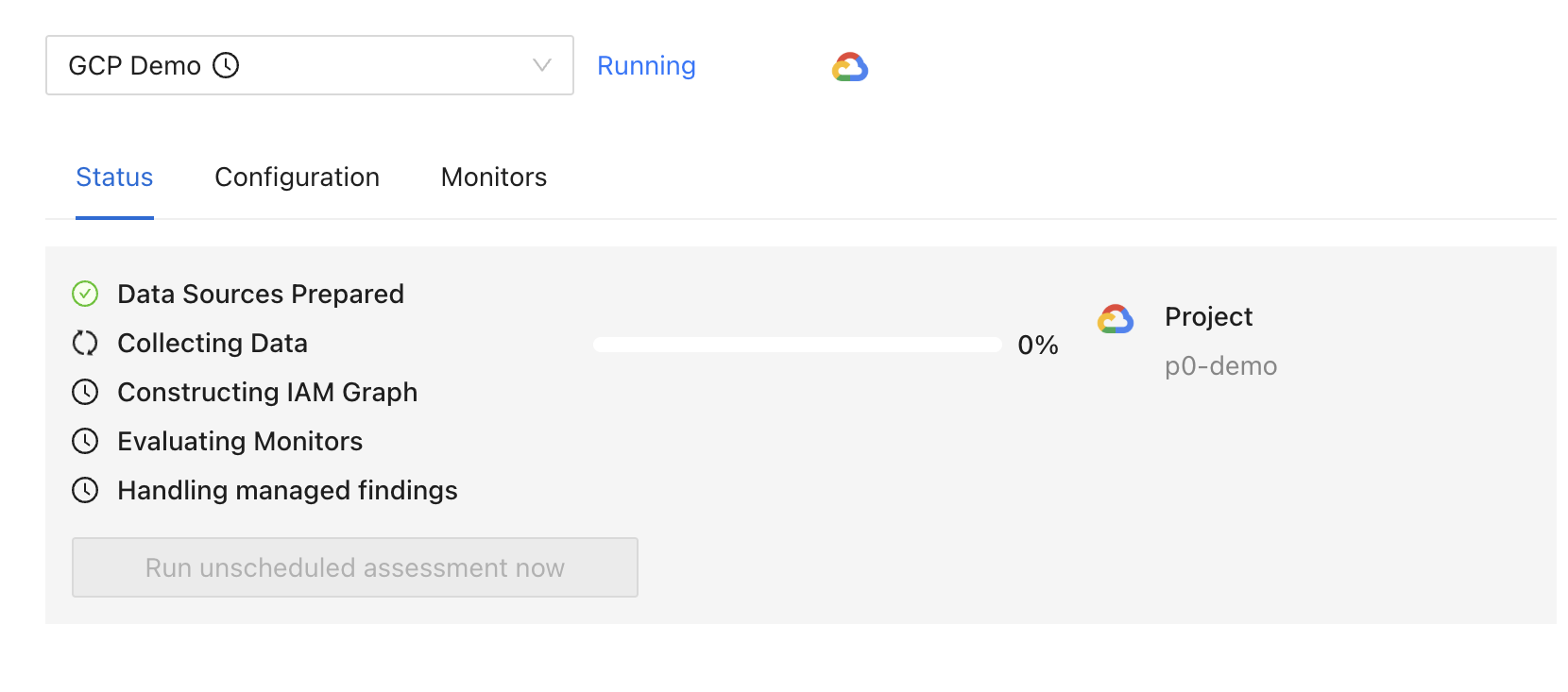
Within a few moments P0 will start collecting data from your project:
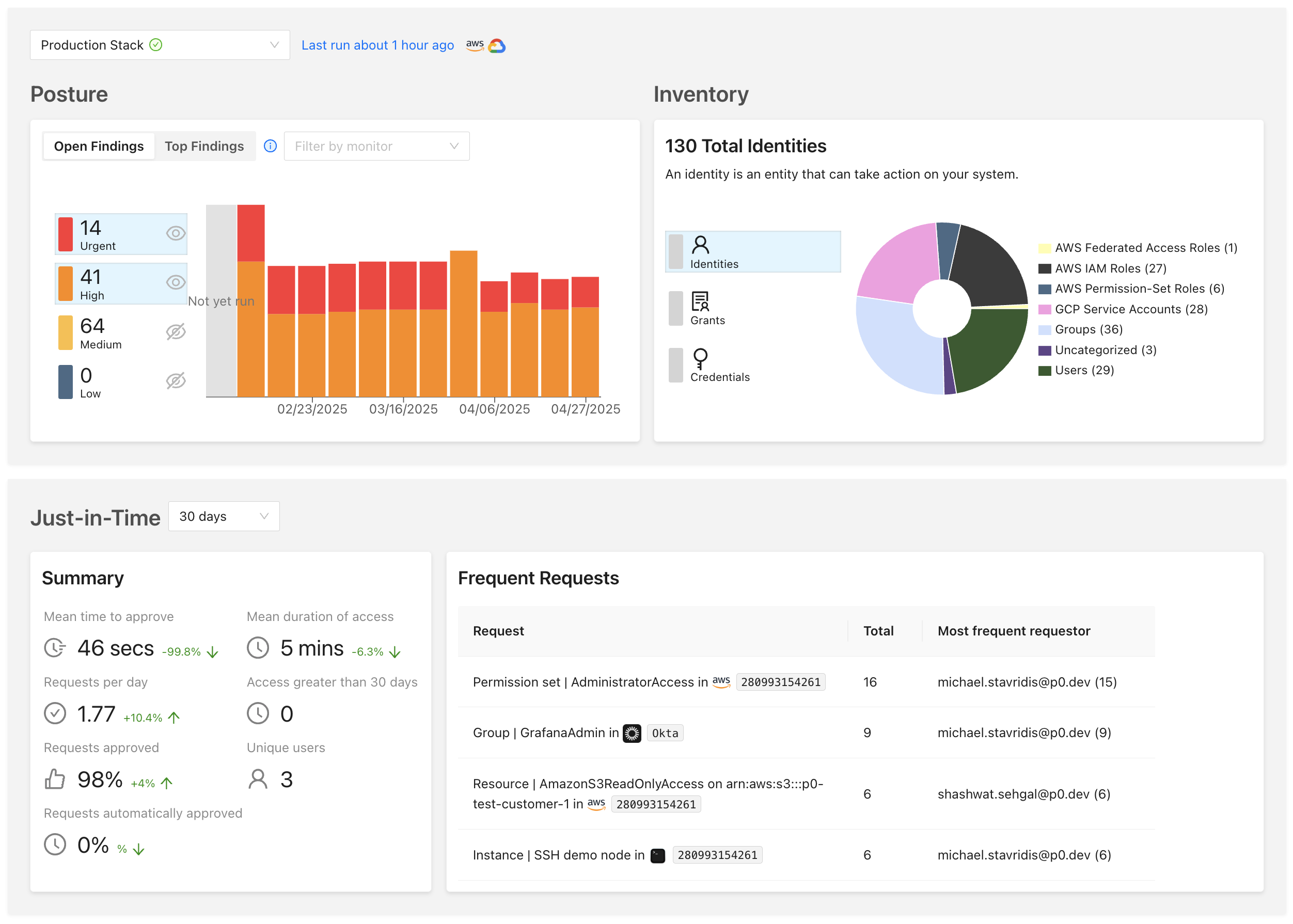
Once the data-collection job completes, click "Dashboard" to see your results.
Congratulations, you've run your first environment scan with P0!
For information on how to view and use the results, see [Access inventory](/inventory/access-inventory.md) and [Posture overview](/posture/posture-overview.md).