> For the complete documentation index, see [llms.txt](https://docs.p0.dev/llms.txt). Markdown versions of documentation pages are available by appending `.md` to page URLs; this page is available as [Markdown](https://docs.p0.dev/getting-started/getting-started-with-just-in-time-access.md).
# Grant just-in-time access to your cloud
Install P0 Security, configure approval workflows, and make your first just-in-time access request. A step-by-step guide for security and DevOps teams.
## Visual overview
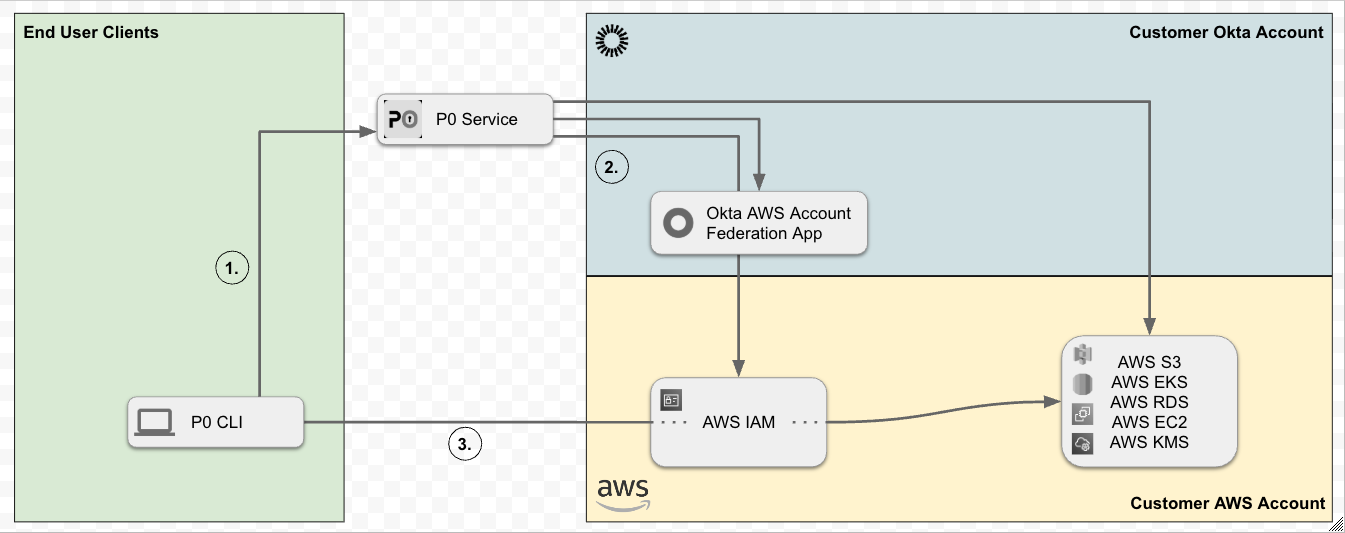
The following diagram illustrates an example Just-in-Time Access workflow at a high level.
## Steps to get started
This guide provides the following sections to help you get up and running with P0's [Just-in-time access](/access-management/access-management/just-in-time-access.md):
1. [#set-up-an-account-and-a-security-reviewer](#set-up-an-account-and-a-security-reviewer "mention")
2. [#install-p0-on-an-iam-resource](#install-p0-on-an-iam-resource "mention")
3. [#make-your-first-access-request](#make-your-first-access-request "mention")
{% hint style="info" %}
This process takes about 15 minutes.
{% endhint %}
{% hint style="info" %}
This document uses the following terms:
* **Requestor:** Person who requests access to a resource via P0's Slack bot.
* **Approver:** Person who approves these access requests via P0's Slack bot.
{% endhint %}
## Set up an account and a security reviewer
To create your P0 account and set up an approver to approve access requests:
1. Create a free P0 account at[ https://p0.app/create-account](https://p0.app/create-account). All you need is an email address.
2. Set up a cloud integration through the guided onboarding flow (select **Access Orchestration**). You may skip this step and instead follow the instructions to install a resource in the next step, [#install-p0-on-an-iam-resource](#install-p0-on-an-iam-resource "mention").
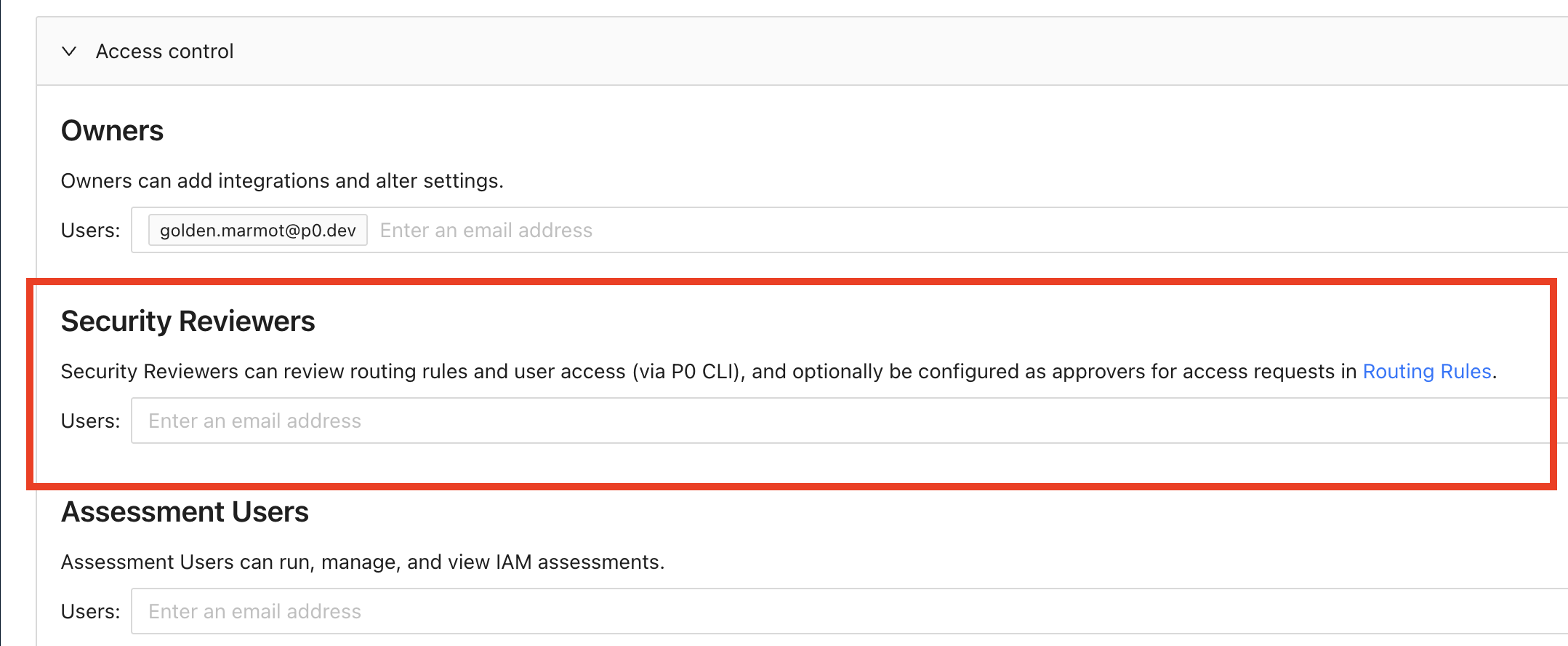
3. Once you complete the onboarding, under **P0 Management**, add one or more "Security Reviewers". Security Reviewers can approve access requests.
{% hint style="info" %}
To further configure access request requestors, approvers, or change settings such as the ability to approve your own access requests, navigate to **Policy Studio** (or go to `https://p0.app/o//policies`). You can edit the existing default rule or create new rules.
{% endhint %}
## Install P0 on an IAM resource
If you already configured a resource as part of the guided onboarding, you may skip this step. Otherwise, you will need to install an IAM resource to which users can request Just-in-time access.
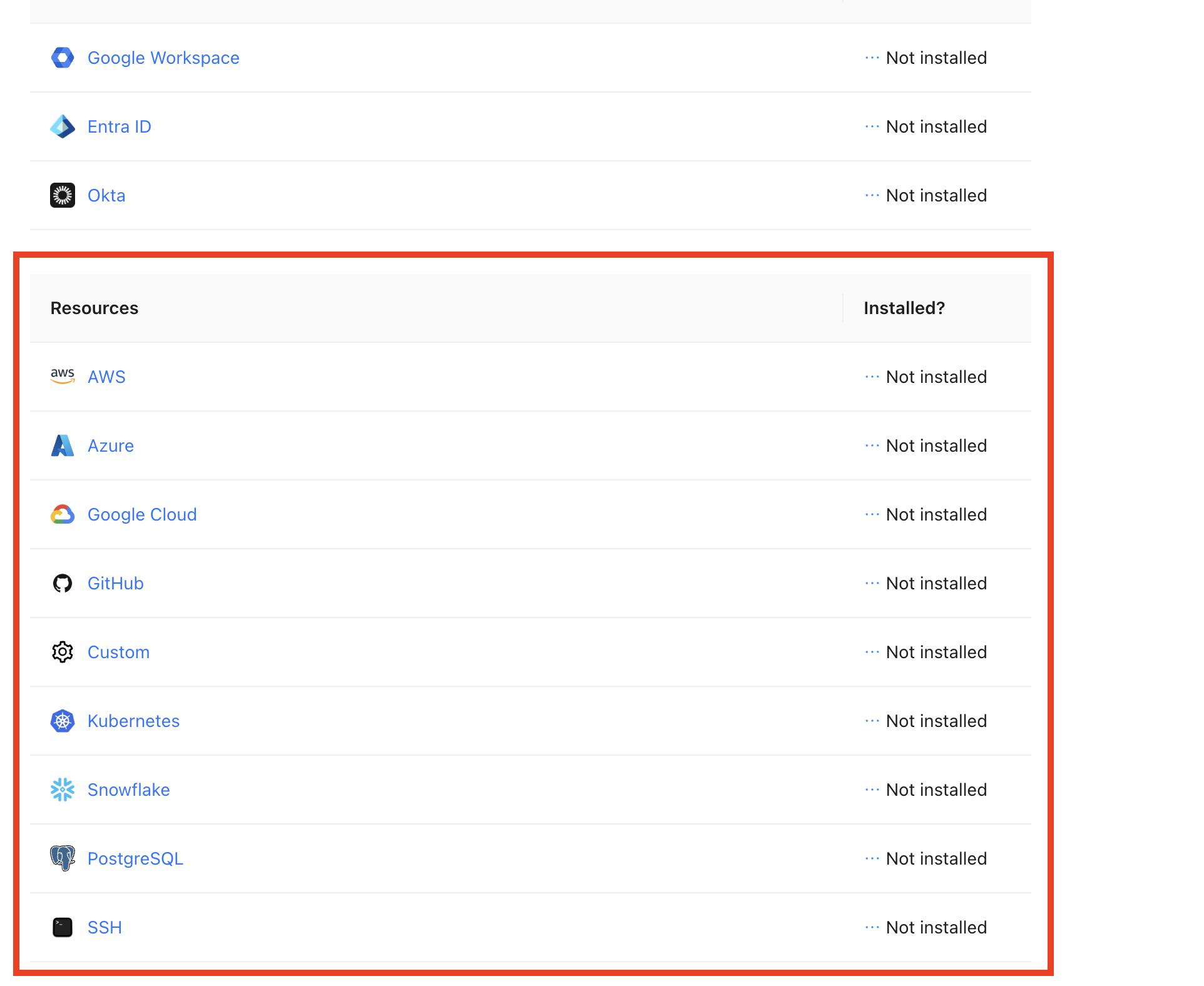
To do this, navigate to **Integrations** and select the integration you wish to install from the list of "Resource" integrations.
Once you have selected a resource, follow the instructions in the app to provide P0 with permissions to grant and revoke access on that resource via the **IAM Management** installation. For more information, follow one of the resource-specific installation guides below.
{% content-ref url="/pages/oOcOnLUMfBQoti6jD1po" %}
[Google Cloud](/integrations/resource-integrations/google-cloud.md)
{% endcontent-ref %}
{% content-ref url="/pages/baaaYyZ5nS00f0uGiG18" %}
[AWS](/integrations/resource-integrations/aws.md)
{% endcontent-ref %}
{% content-ref url="/pages/L3Cnca6oWCOCnTjRmkKb" %}
[Snowflake](/integrations/resource-integrations/snowflake.md)
{% endcontent-ref %}
{% content-ref url="/pages/PmNajuau9q2r5PTTC5b3" %}
[Kubernetes](/integrations/resource-integrations/kubernetes.md)
{% endcontent-ref %}
{% content-ref url="/pages/WB17gpku7oBOSnxK8PQ6" %}
[PostgreSQL](/integrations/resource-integrations/postgresql.md)
{% endcontent-ref %}
## Make your first access request
Once you've set up P0, you can make your first access request. You can try this out entirely on your own, if you enabled one-party approvals in [#set-up-an-account-and-a-security-reviewer](#set-up-an-account-and-a-security-reviewer "mention"). Otherwise, grab a colleague to help you, and designate one person as the requestor and the other as the approver:
{% hint style="info" %}
* You can use the [P0 Security Command-line Interface](https://www.npmjs.com/package/@p0security/cli) (CLI) as an alternate method to request permissions, and then approve using the P0 website app.
* P0 is in the process of adding additional IAM request methods, including a Microsoft Teams bot.
{% endhint %}
{% tabs %}
{% tab title="Via the p0.app" %}
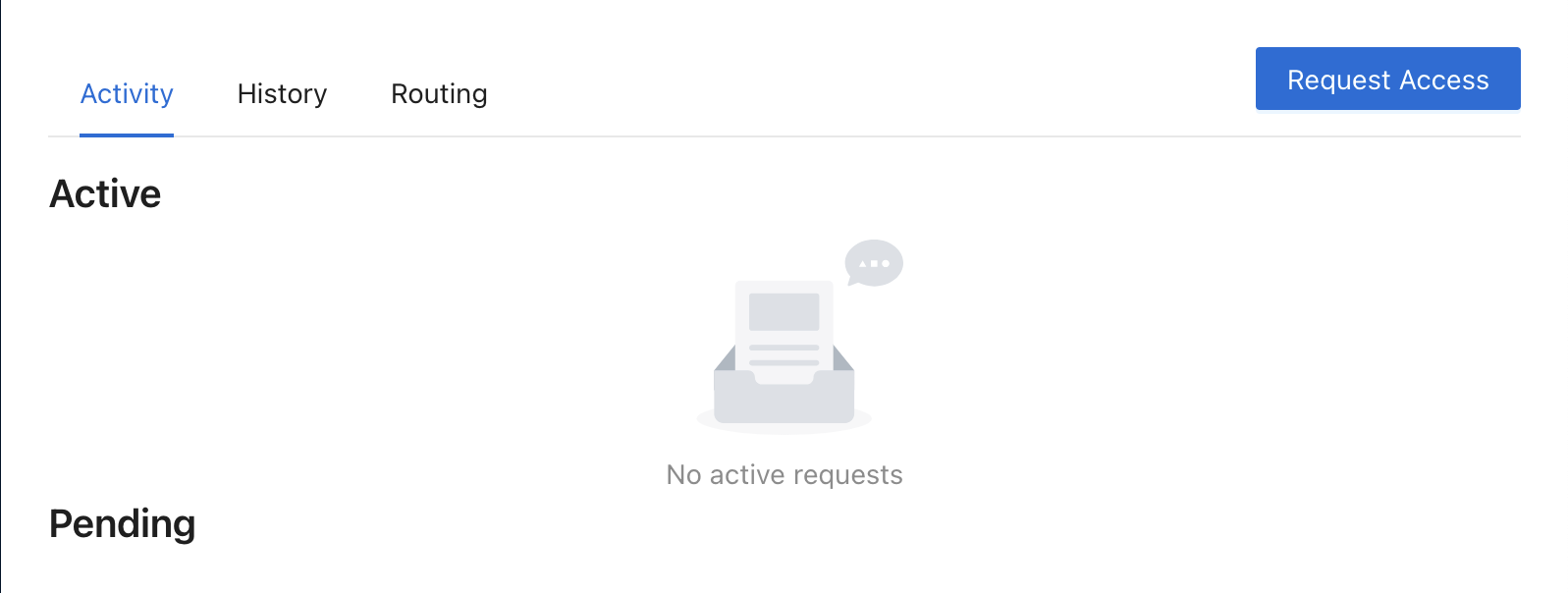
1. Navigate to any page under Access Management `https://p0.app/o//access-management/activity` and click the Request Access button in the top right.
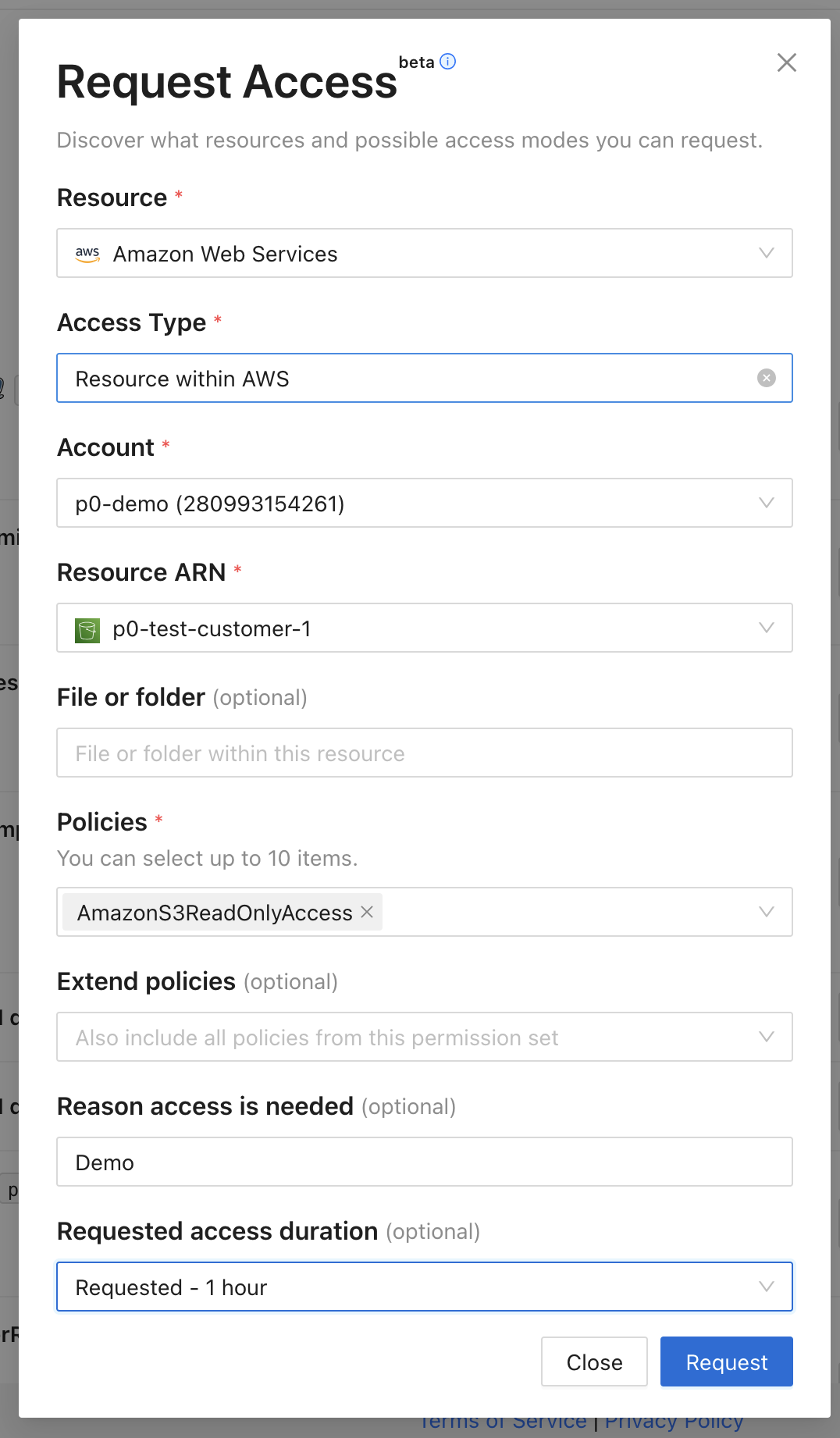
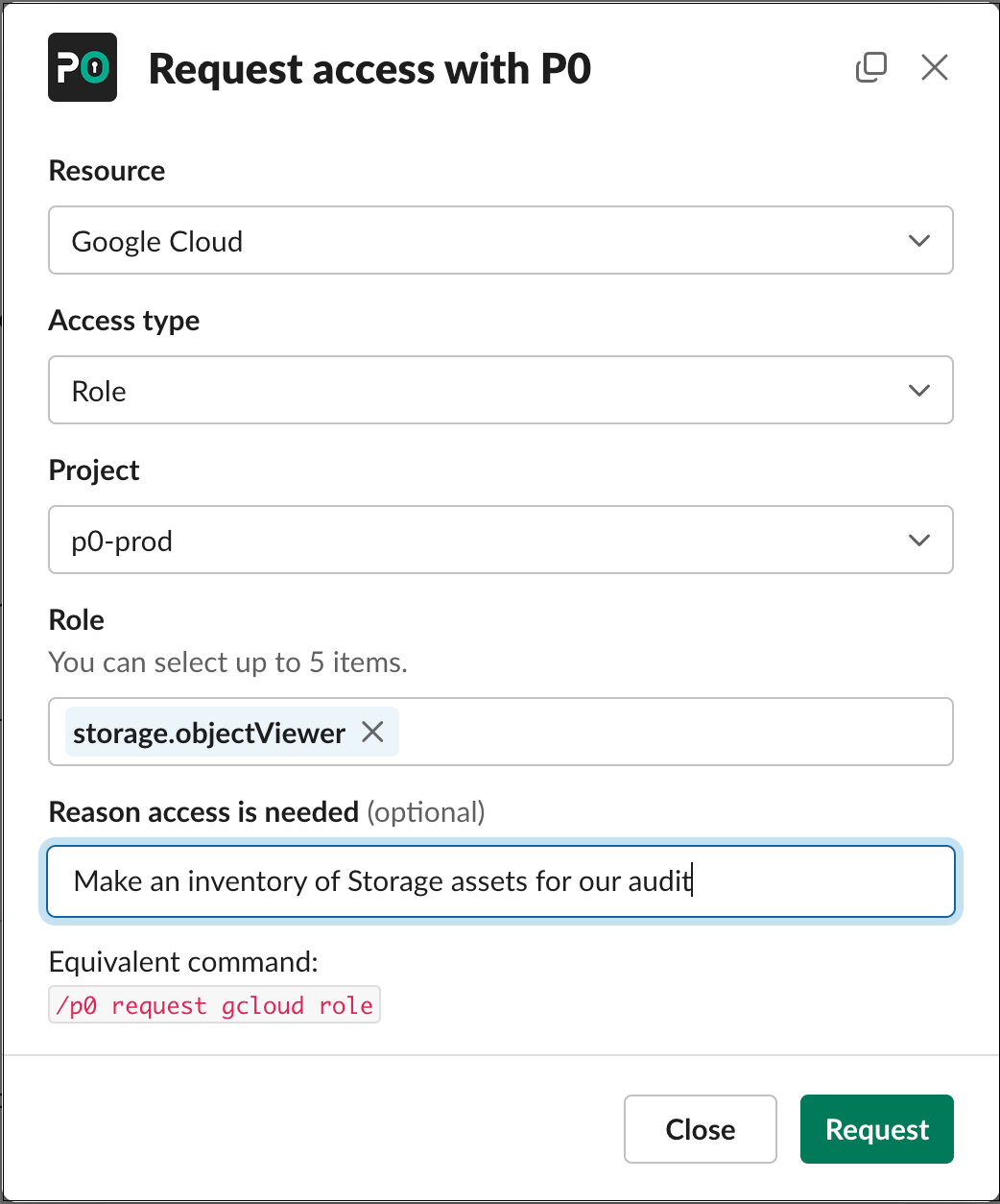
2. Populate the request details. For example:
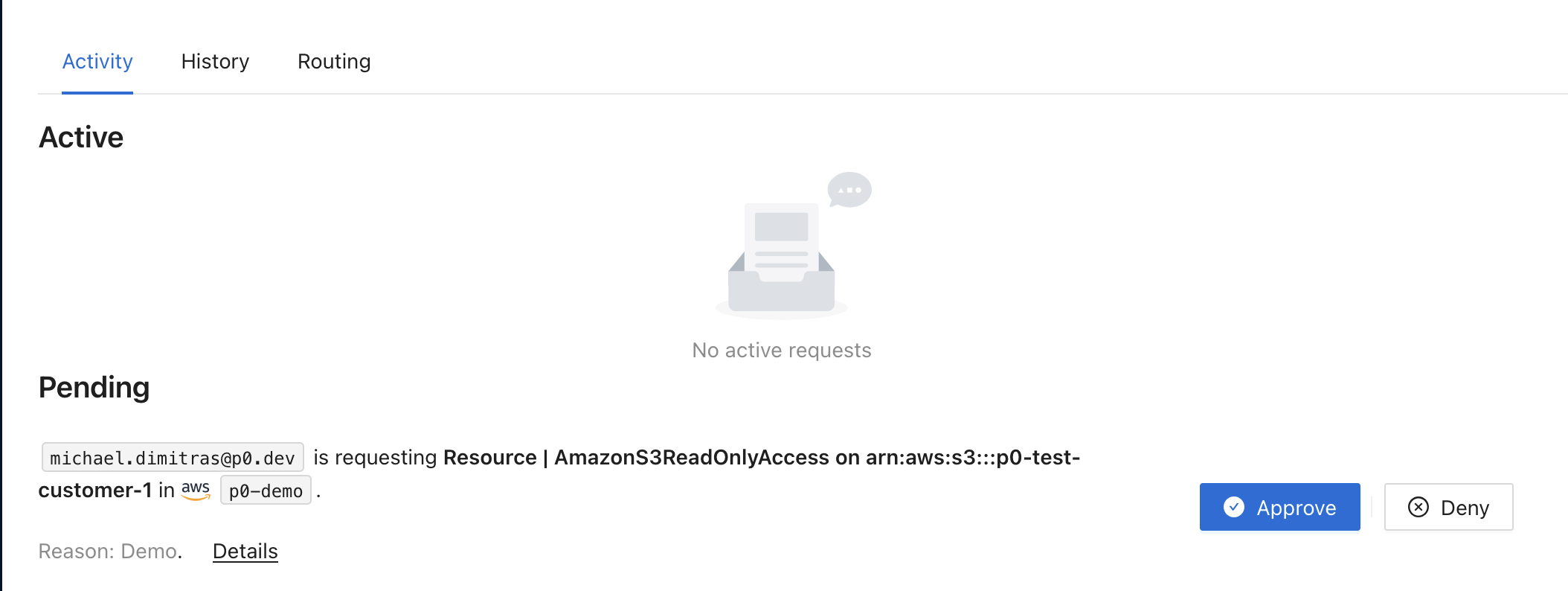
3. The approver can see the request on the Access Management Activity page in the Pending section.
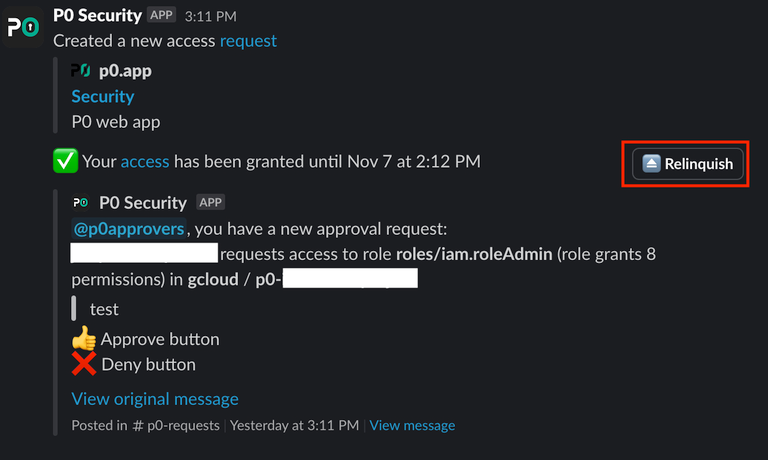
After a few moments, the access requestor receives a notification in the **p0-requests** channel that access was granted.
{% hint style="warning" %}
Most IAM systems have a delay of around 10 to 30 seconds after access is configured before access propagates to the resource and usage is enabled.
{% endhint %}
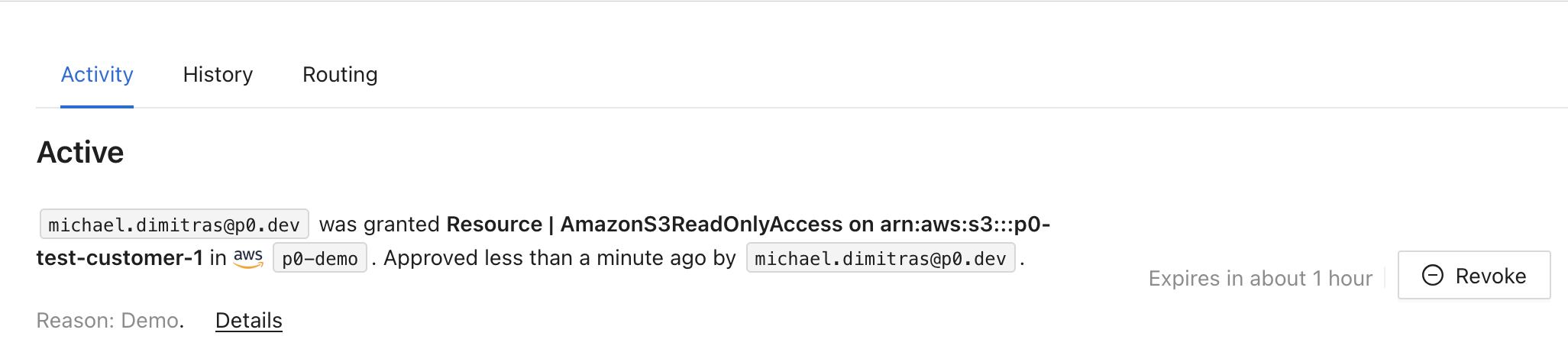
4. Once the access propagates to the resource, the request progresses to the Active section.
{% hint style="info" %}
Access automatically ends after the expiration period is over, or when the requestor clicks the **Relinquish** button in their P0 DM.
{% endhint %}
{% endtab %}
{% tab title="Via Slack" %}
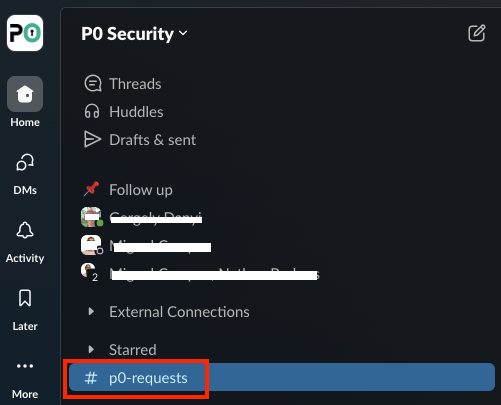
1. Have the requestor open Slack, navigate to the **p0-requests** channel, and enter `/p0 request` in the Slack channel:
2. Populate the request details. For example:
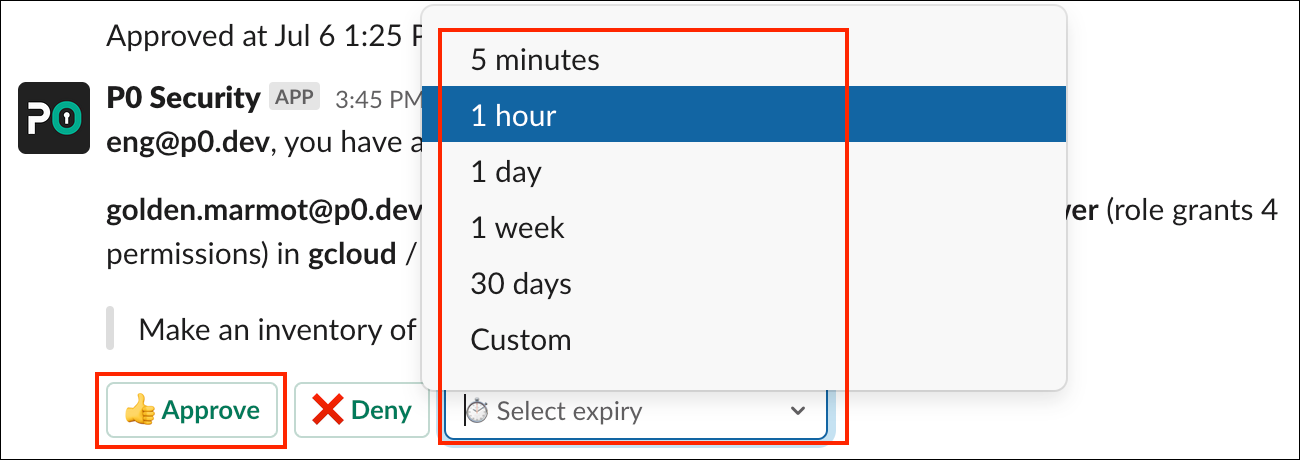
3. The approver receives a Slack notification via a DM from **P0 Security**. Navigate to that DM chat, choose an expiration, and click **Approve**.
After a few moments, the access requestor receives a notification in the **p0-requests** channel that access was granted.
{% hint style="warning" %}
Most IAM systems have a delay of around 10 to 30 seconds after access is configured before access propagates to the resource and usage is enabled.
{% endhint %}
4. Once the access propagates to the resource, the requestor can validate the access.
{% hint style="info" %}
Access automatically ends after the expiration period is over, or when the requestor clicks the **Relinquish** button in their P0 DM.
{% endhint %}
{% endtab %}
{% endtabs %}
## What's next
If you run into any issues, reach out to for assistance.
Now that you can make access requests, you can:
* Add [Resource integrations](/integrations/resource-integrations.md)
* Connect P0 to [Directory integrations](/integrations/directory-integrations.md)
* Add [Approval integrations](/integrations/approval-integrations.md)
* Start exploring P0's Access Inventory and Posture capabilities: [Explore who has access to what with Access Inventory](/getting-started/getting-started-with-access-inventory.md) and [Find risky access with Posture](/getting-started/getting-started-with-posture.md)
* Configure access policies in [Policy Studio](/policy-studio/policy-studio.md) to route, automatically approve, and automatically deny requests based on the requestor and resource