> For the complete documentation index, see [llms.txt](https://docs.p0.dev/llms.txt). Markdown versions of documentation pages are available by appending `.md` to page URLs; this page is available as [Markdown](https://docs.p0.dev/integrations/resource-integrations/aws/requesting-access.md).
# Requesting AWS access
How to request just-in-time access to AWS IAM policies, groups, and roles through P0 via Slack, Teams, Webex, the P0 CLI, or the P0 dashboard.
## Requesting from Slack or through p0.app
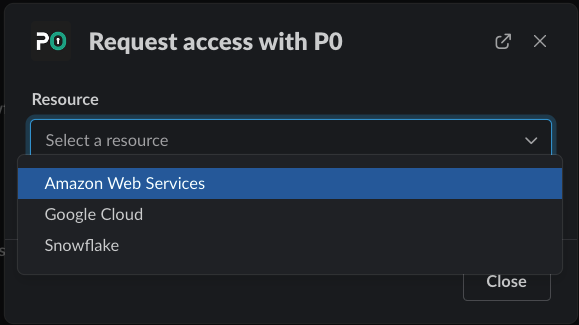
Open up the p0 modal using `/p0 request` in Slack or in p0.app (see [Grant just-in-time access to your cloud](/getting-started/getting-started-with-just-in-time-access.md#make-your-first-access-request)) and select "Amazon Web Services" as the resource.
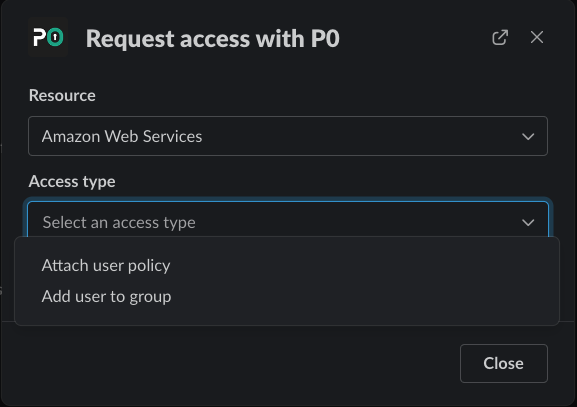
You'll see an "Access type" field with 2 options, "Attach user policy", and "Add user to group".
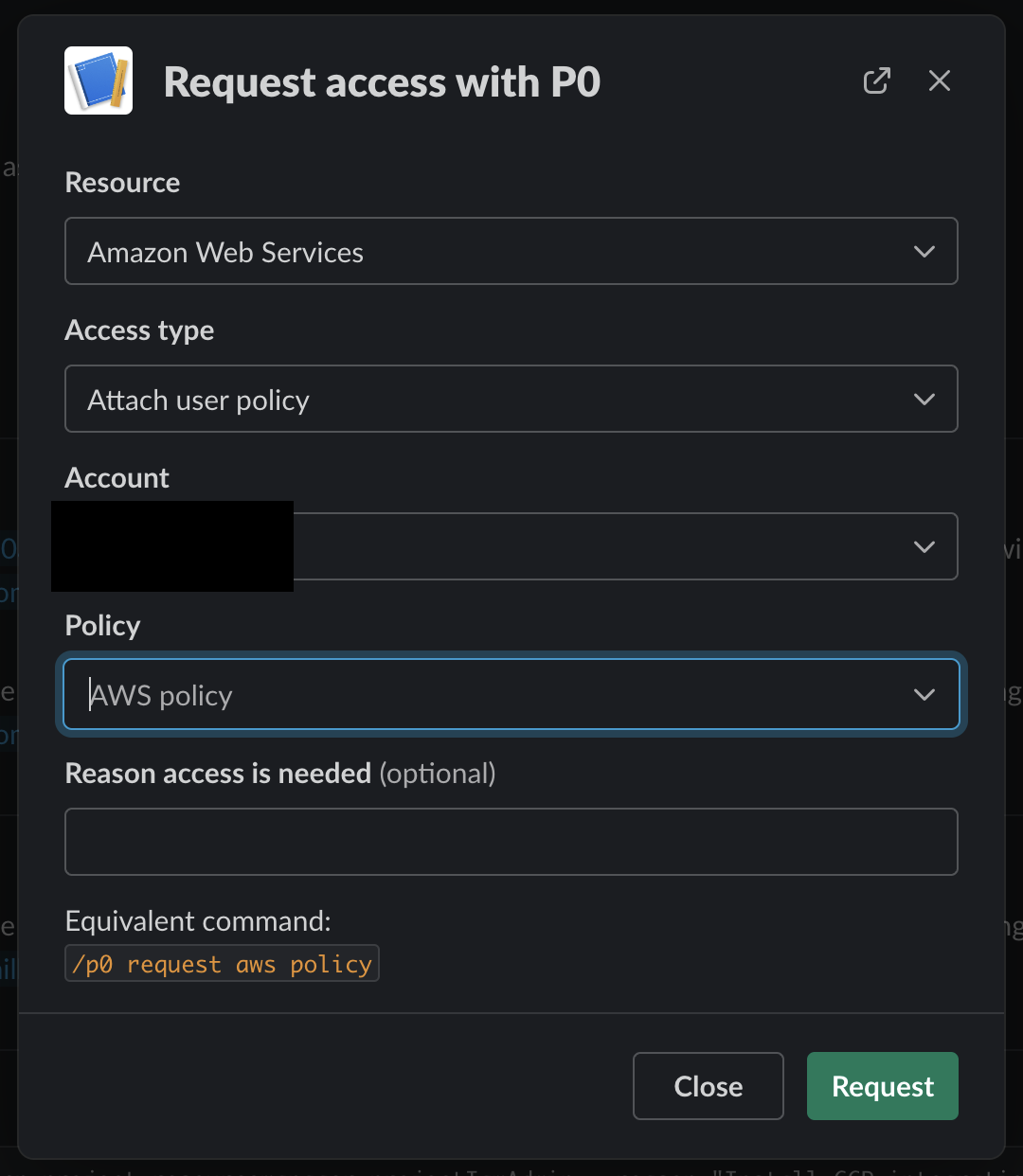
* **"Attach user policy":** request a user policy to be attached to your AWS user. The policy can either be a customer-managed or AWS-managed policy.
* **"Add user to group":** request your AWS user to be added to a user group.
P0 auto-completes as you start typing out the policy or group. Once you select the policy / group you need, you can optionally add a reason for P0 to supply to the approver(s), then submit the request. If an existing policy / group isn't shown in the auto-complete results, it may be filtered out by access policies. See [Configuring access policies](/policy-studio/policy-studio/configure-your-first-access-policy.md#resource).
### Fine-grained resource-level access
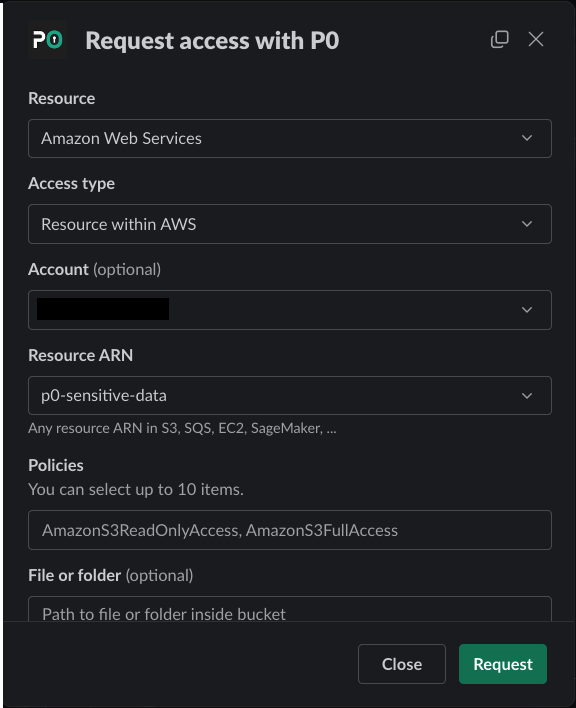
If you installed the AWS resource inventory integration ([AWS](/integrations/resource-integrations/aws.md#setting-up-aws-resource-inventory)) you will be able to choose the "Resource in AWS" access type. You can specify the exact resource and a policy. P0 will generate a new policy that contains the actions from the selected policy filtered to the selected resource.
For example, request access to a specific S3 bucket called `p0-sensitive-data`:
When requesting access to an AWS resource, each service offers multiple permission levels ranging from read-only to full access. For some services, P0 provides curated policies that grant least-privilege access when no suitable AWS-managed policy exists. For details on the specific permissions granted for each policy, see [Permission levels](/integrations/resource-integrations/aws/requesting-access/permission-levels.md).
### What happens next
Once you make the request, you should get a Slack message from the p0 bot showing your request. There will also be a message to the approvers in the Slack channel designated by your org admin, requesting access.
1. If your request is approved, when you get a message that it has been approved, that means you should already have access provisioned, as that happens all at the same time.
2. **If you are on-call (on a PagerDuty schedule), and your org admin has enabled PagerDuty routing, your access may be automatically approved.** Your access lasts for the duration you requested, capped by your organization's maximum access duration.
3. After your request is approved, there will be a “relinquish” button for you to let go of your permissions early if you finish what you wanted to do before the expiration date (so you can let go of unneeded permissions).
4. If you wait for the access to expire, you will get a message that it has expired once it does.
5. If your request is denied, you'll get a message letting you know.