> For the complete documentation index, see [llms.txt](https://docs.p0.dev/llms.txt). Markdown versions of documentation pages are available by appending `.md` to page URLs; this page is available as [Markdown](https://docs.p0.dev/integrations/resource-integrations/google-secret-manager.md).
# Google Secret Manager
Grant just-in-time read access to individual Google Secret Manager secrets through P0, on top of your existing Google Cloud IAM management integration.
{% hint style="info" %}
Google Secret Manager is a **preview** integration.
{% endhint %}
The Google Secret Manager integration lets P0 grant just-in-time, time-limited read access to individual [Google Secret Manager](https://docs.cloud.google.com/secret-manager/docs/overview) secrets. P0 grants access to one named secret at a time, so a requestor receives only the secret they need rather than project-wide secret access.
## How it works
Google Secret Manager builds on your existing Google Cloud IAM management install:
1. A user requests access to a specific secret in a project through P0.
2. After approval, P0 delegates read access to that secret for the approved duration. P0 scopes the grant to the requested secret resource, not to the whole project.
3. When the access duration expires or an approver revokes access, P0 removes the grant.
## What P0 can and cannot do with your secrets
Google Secret Manager uses your existing Google Cloud IAM management permissions and requires no new ones. That service account cannot read secret values.
On approval, P0 grants the requesting user `roles/secretmanager.secretAccessor` on the one requested secret, as a project-level binding with a condition that limits it to that secret. The user reads the secret through Google Cloud. P0 never sees or stores the value.
## Before you begin
To set up Google Secret Manager, you need:
* A P0 [Google Cloud](/integrations/resource-integrations/google-cloud.md) integration with **IAM management** installed on the project that holds the secrets. Google Secret Manager reuses that integration's IAM-write access, so install it first.
* A P0 account with administrator access.
## Setting up Google Secret Manager
1. Navigate to **Integrations** on [p0.app](https://p0.app) and select the **Google Secret Manager** integration.
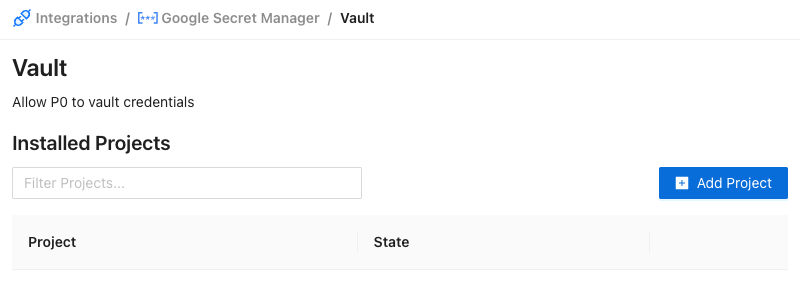
2. Select the **Vault** component.
{% hint style="info" %}
**Vault** is your Google Secret Manager. P0 does not copy or store your credentials.
{% endhint %}
3. Click the **Add Project** button.
4. Next select the Project identifier from the dropdown menu where your IAM management integration is installed and click **Next**.
5. Click **Finish**.
{% hint style="success" %}
P0 can now grant just-in-time access to your Google Secret Manager secrets. See [#requesting-access](#requesting-access "mention") to make your first request.
{% endhint %}
## Requesting access
Users request access to a secret through the P0 app or a P0 notifier such as Slack:
1. Open [p0.app](https://p0.app) and navigate to the [Access Management](/access-management/access-management.md) page.
2. Click **Request Access**.
3. In the **Resource** dropdown, select **Google Secret Manager**.
4. Select the **Secret manager project** and enter the **Secret name** you need to read.
5. Enter a reason and a requested duration, then submit the request.
After an approver grants the request, P0 delegates read access to the secret for the approved duration.
## Additional resources
* [Google Cloud](/integrations/resource-integrations/google-cloud.md)
* [Google Secret Manager access control documentation](https://docs.cloud.google.com/secret-manager/docs/access-control)