> For the complete documentation index, see [llms.txt](https://docs.p0.dev/llms.txt). Markdown versions of documentation pages are available by appending `.md` to page URLs; this page is available as [Markdown](https://docs.p0.dev/integrations/resource-integrations/microsoft-azure/configure-bastion-host-integration.md).
# Configure bastion host integration
Choose how P0 connects to your Azure VMs, through an Azure Bastion host or a custom jump host, to enable secure SSH access.
Once you configure IAM management, you can enable secure SSH access to VMs in your Azure environment. This requires two parts:
* Bastion host configuration under the Azure integration (this page and its subpages)
* [Install SSH access](/integrations/resource-integrations/microsoft-azure/install-ssh-access.md) under Integrations → SSH
When you configure the component, you choose how P0 connects to your virtual machines (VMs) to provision access. You select the connection type per subscription when you add the subscription.
{% hint style="warning" %}
Complete [IAM management](/integrations/resource-integrations/microsoft-azure/iam-management.md) before starting this step. The Bastion host configuration depends on the IAM permissions set up in the previous step.
{% endhint %}
{% hint style="warning" %}
**Every VM you want to reach through P0 must have the `AADSSHLoginForLinux` extension enabled.** P0 discovers a Linux VM for SSH access only when this extension is enabled on it. Enable it on **all** target machines before you request access. See [Install SSH access](/integrations/resource-integrations/microsoft-azure/install-ssh-access.md#virtual-machine-requirements) for details.
{% endhint %}
## Connection types
P0 supports two ways to reach your VMs. Each has its own requirements, permissions, and setup steps, covered on its own page.
| Connection type | Description | Custom role required |
| ---------------------------------------------------------------------------------------------------------------------------------- | ---------------------------------------------------------------------------------------- | ----------------------------------------- |
| [Azure bastion host](/integrations/resource-integrations/microsoft-azure/configure-bastion-host-integration/azure-bastion-host.md) | P0 provisions SSH access through a managed Azure Bastion host. | Yes, P0 creates and holds the role |
| [Custom jump host](/integrations/resource-integrations/microsoft-azure/configure-bastion-host-integration/custom-jump-host.md) | P0 connects through a virtual machine behind a virtual network that acts as a jump host. | Yes, you grant a role to connecting users |
### Which to choose
* Choose [Azure bastion host](/integrations/resource-integrations/microsoft-azure/configure-bastion-host-integration/azure-bastion-host.md) when you already run an Azure Bastion host, or want P0 to manage SSH sessions through Azure's managed Bastion service.
* Choose [Custom jump host](/integrations/resource-integrations/microsoft-azure/configure-bastion-host-integration/custom-jump-host.md) when you route SSH through your own VM behind a virtual network and want your users to connect over Azure IAM.
## How the connection works
P0 installs Bastion host configuration **per subscription**. Each subscription that needs SSH access must have the component configured. When you add a subscription, you select how P0 connects: through an **Azure bastion host** or through a **custom jump host**.
## Get started
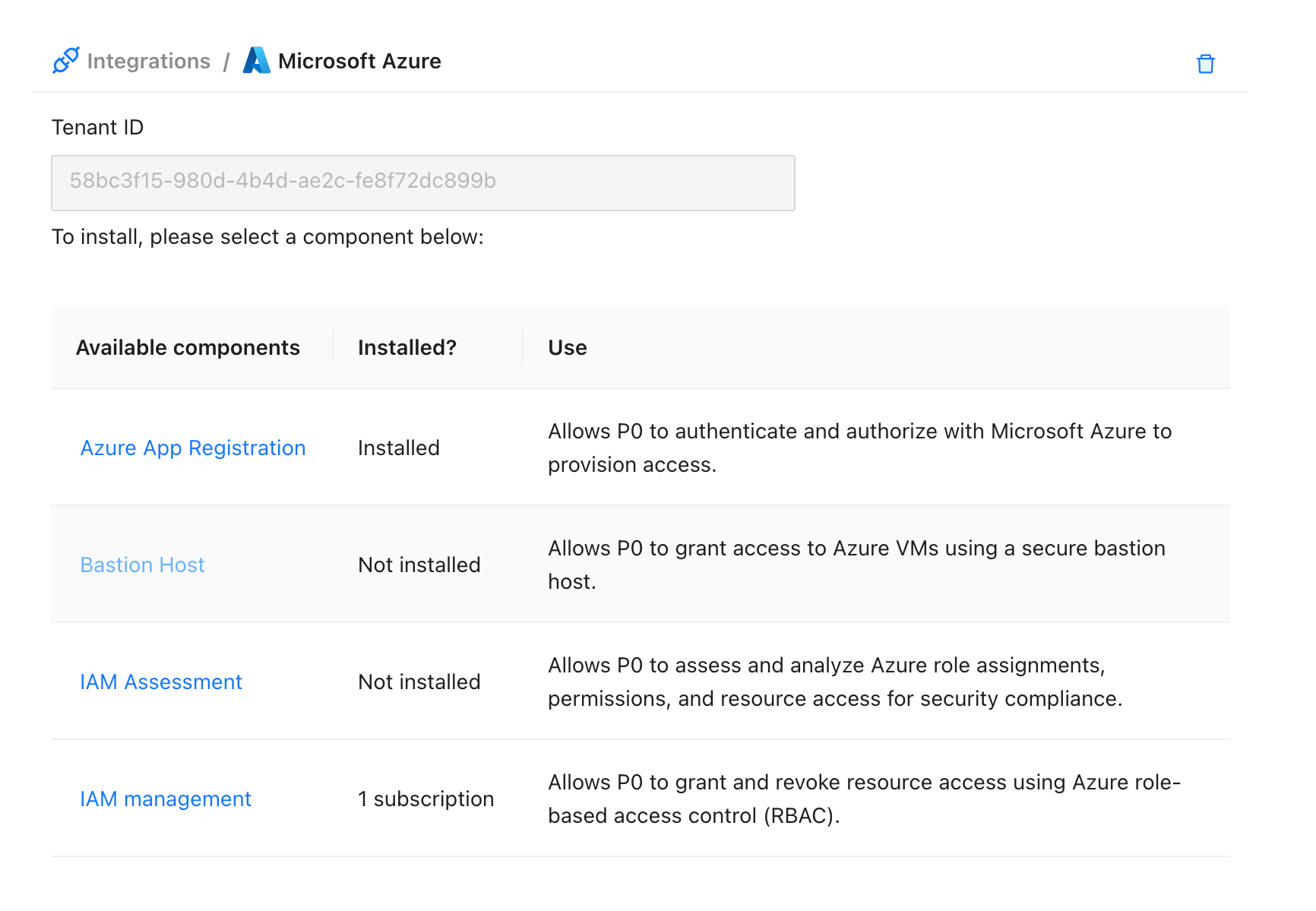
1. In the **Azure** integration on [p0.app](https://p0.app), select **Bastion Host**.
2. Click **Add subscription**.
3. Select a subscription. Only subscriptions with [IAM management](/integrations/resource-integrations/microsoft-azure/iam-management.md) already installed appear in this list.
4. Select how P0 connects to your VMs, then complete the setup steps for that connection type:
* [Azure bastion host](/integrations/resource-integrations/microsoft-azure/configure-bastion-host-integration/azure-bastion-host.md)
* [Custom jump host](/integrations/resource-integrations/microsoft-azure/configure-bastion-host-integration/custom-jump-host.md)
## Next step
Proceed to [Install SSH access](/integrations/resource-integrations/microsoft-azure/install-ssh-access.md) to connect P0 to your Azure VMs.
.png?alt=media)
.png?alt=media)