> For the complete documentation index, see [llms.txt](https://docs.p0.dev/llms.txt). Markdown versions of documentation pages are available by appending `.md` to page URLs; this page is available as [Markdown](https://docs.p0.dev/integrations/resource-integrations/microsoft-azure/install-ssh-access.md).
# Install SSH access
Connect P0 to your Azure VMs by installing SSH access.
This final step connects P0's SSH integration to your Azure subscription enabling SSH access requests to Virtual Machines.
## Prerequisites
Azure SSH is step 4 of the Azure integration. Complete the earlier steps **in order** before you start. Each one depends on the step before it.
| Step | Prerequisite | Why it's required |
| ---- | ------------------------------------------------------------------------------------------------------------------------------- | ------------------------------------------------------------------------------------------------------------------------------------------------------------------------------------------------------------------------- |
| 1 | [Azure app registration](/integrations/resource-integrations/microsoft-azure/azure-app-registration.md) | Creates the service identity P0 uses in your tenant. |
| 2 | [IAM management](/integrations/resource-integrations/microsoft-azure/iam-management.md) | Grants the `User.Read.All` Graph permission (with admin consent) that P0 uses to resolve requesting users during SSH sessions, and creates the `P0 Service Management` role P0 uses to assign VM access at session start. |
| 3 | [Configure bastion host integration](/integrations/resource-integrations/microsoft-azure/configure-bastion-host-integration.md) | Sets up how P0 connects to your VMs. A subscription appears in the SSH install list only after its Bastion host is configured. |
You also need:
* An account with the [Owner](https://learn.microsoft.com/en-us/azure/role-based-access-control/built-in-roles/privileged#owner) role on the target subscription. The earlier steps use it to create the roles and role assignments P0 needs; the SSH install itself runs no Azure CLI commands.
* The [Azure CLI](https://learn.microsoft.com/en-us/cli/azure/install-azure-cli) installed and signed in to the tenant where you're installing P0.
{% hint style="warning" %}
**Two requirements cause most failed installs. Confirm both before you begin:**
* **`AADSSHLoginForLinux` must be enabled on every VM** you want to reach through P0. P0 discovers a Linux VM for SSH only when this extension is enabled. See [#virtual-machine-requirements](#virtual-machine-requirements "mention").
* **Admin consent must be granted for the `User.Read.All` permission** during [IAM management](/integrations/resource-integrations/microsoft-azure/iam-management.md) installation. Without it, P0 cannot resolve the requesting user and SSH sessions fail. See [#permissions](#permissions "mention").
{% endhint %}
## How SSH subscription filtering works
When you configure SSH access, P0 only shows Azure subscriptions that already have a bastion host configured ([Configure bastion host integration](/integrations/resource-integrations/microsoft-azure/configure-bastion-host-integration.md)). If your subscription does not appear in the list, verify that the Bastion host component is installed for that subscription.
## Virtual machine requirements
Any virtual machine you want to connect to via SSH through P0 must meet the following requirements.
{% hint style="warning" %}
**Enable the `AADSSHLoginForLinux` extension on every VM.** P0 discovers a Linux VM for SSH access only when the `AADSSHLoginForLinux` extension is enabled on it. Any VM without this extension does not appear in the P0 inventory and cannot be requested. Enable the extension on **all machines** you want to reach through P0. See the [Microsoft documentation](https://learn.microsoft.com/en-us/entra/identity/devices/howto-vm-sign-in-azure-ad-linux) for installation instructions.
{% endhint %}
| Requirement | Details |
| ------------------------------- | ----------------------------------------------------------------------------------------------------------------------------------------------------------------------------------------------------------------------------------------------------------- |
| `AADSSHLoginForLinux` extension | Must be **enabled on every Linux VM**. VMs without this extension do not appear in the P0 inventory. See [Microsoft documentation](https://learn.microsoft.com/en-us/entra/identity/devices/howto-vm-sign-in-azure-ad-linux) for installation instructions. |
| Network connectivity | VMs must be in a virtual network that is either: **the same virtual network** as the Bastion host, or **a peered virtual network** connected to the Bastion's virtual network. |
## Virtual network peering
P0 automatically manages virtual network (VNet) peering between the Bastion host's network and the target VM's network when they are in different virtual networks.
* **Session start:** If the Bastion host and the target VM are in different VNets, P0 creates bidirectional VNet peering between them. If they share the same VNet, no peering is needed.
* **Session end:** When an SSH session ends, P0 removes the VNet peering, but only if no other active SSH sessions depend on that same peering.
This ensures that VNet peering exists only while SSH sessions are active, and that concurrent sessions sharing the same peering are not disrupted.
## Permissions
### Microsoft Graph API permission
The `User.Read.All` Microsoft Graph API permission that P0 uses to look up the requesting user's identity in your Entra ID directory is granted during [IAM management](/integrations/resource-integrations/microsoft-azure/iam-management.md) installation, which is a prerequisite for Azure SSH. Because SSH requires IAM management first, you don't need to grant additional Graph permissions during SSH setup.
| Permission | Type | Purpose | Granted during |
| --------------- | ----------- | --------------------------------------------- | ---------------------------------------------------------------------------------------------------- |
| `User.Read.All` | Application | Read user profiles in your Entra ID directory | [IAM management](/integrations/resource-integrations/microsoft-azure/iam-management.md) installation |
This is a read-only permission. P0 cannot modify user profiles.
{% hint style="warning" %}
**Admin consent is required for this permission.** `User.Read.All` is an application permission, so it takes effect only after an Entra ID administrator grants admin consent. This consent occurs as part of the [IAM management](/integrations/resource-integrations/microsoft-azure/iam-management.md) install steps, which must run with an account that can consent on the tenant's behalf (for example, Privileged Role Administrator or Global Administrator). If admin consent wasn't granted, SSH sessions fail because P0 can't resolve the requesting user. See [#troubleshooting](#troubleshooting "mention").
{% endhint %}
{% hint style="info" %}
A separate Entra ID directory integration is **not required** for Azure SSH. The `User.Read.All` permission granted to the app registration during IAM management installation is sufficient for P0 to resolve user identities during SSH sessions.
{% endhint %}
### VM-access roles
P0 doesn't create a VM-access role during SSH install. The roles connecting users hold to sign in to your VMs are configured on the bastion-host component when you configure the bastion host integration ([Configure bastion host integration](/integrations/resource-integrations/microsoft-azure/configure-bastion-host-integration.md)):
| Field | Purpose |
| ------------------------- | --------------------------------------------------------------------------------- |
| **Standard user role id** | Grants standard (non-sudo) access to the target VM. |
| **Admin user role id** | Grants sudo access, assigned at the target VM only when a request opts into sudo. |
Point these fields at the built-in **Virtual Machine User Login** and **Virtual Machine Administrator Login** roles, or at custom roles you create. Both fields are required. For the exact fields, recommended roles, and minimum permissions, see [Azure bastion host](/integrations/resource-integrations/microsoft-azure/configure-bastion-host-integration/azure-bastion-host.md#setup-steps) or [Custom jump host](/integrations/resource-integrations/microsoft-azure/configure-bastion-host-integration/custom-jump-host.md#permissions).
Because the VM-access roles are configured on the bastion-host component, the SSH install runs no role-creation commands for Azure.
## Setup steps
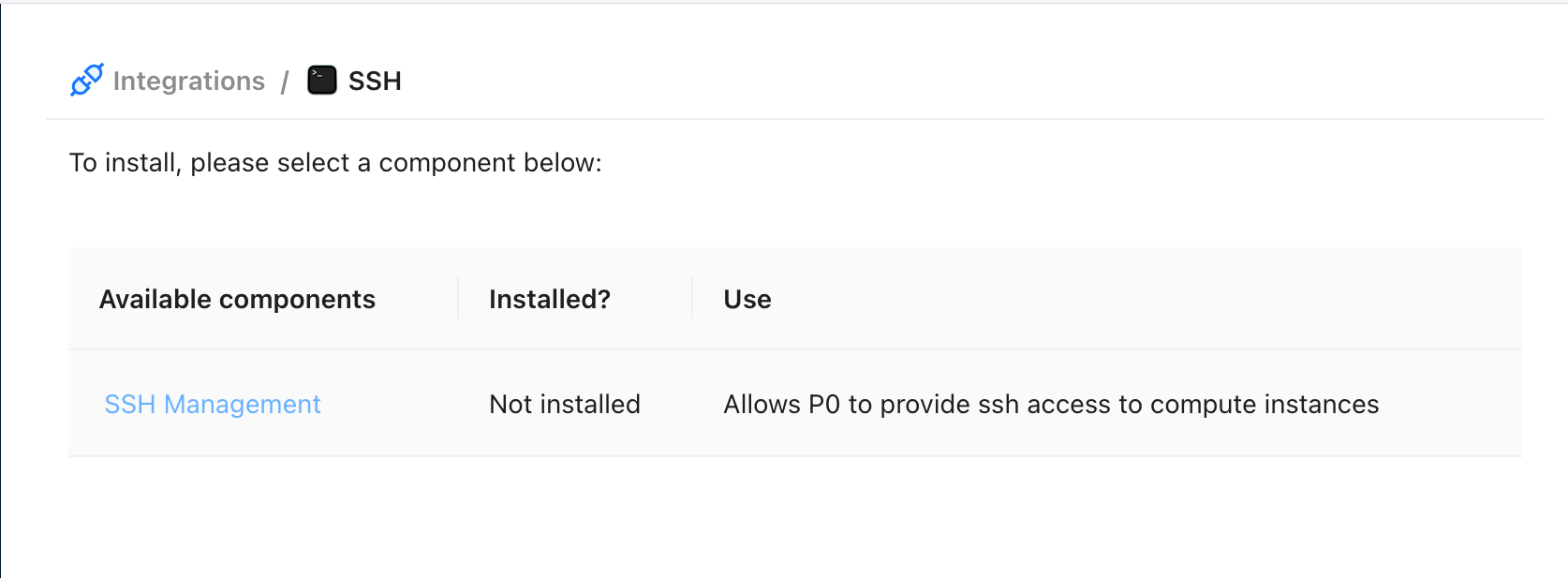
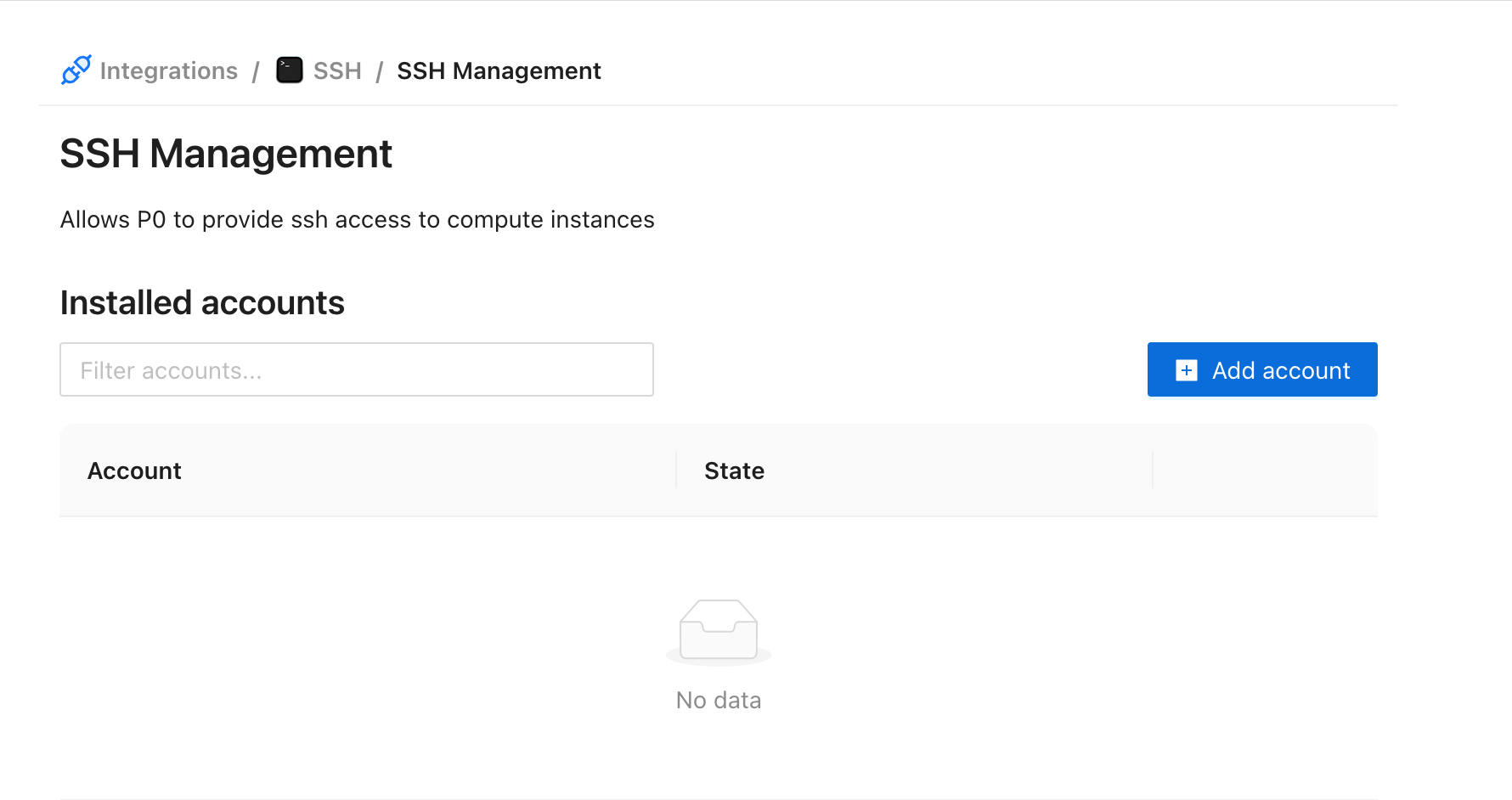
1. In P0, open **Integrations → SSH**.
2. Click **Add account**.
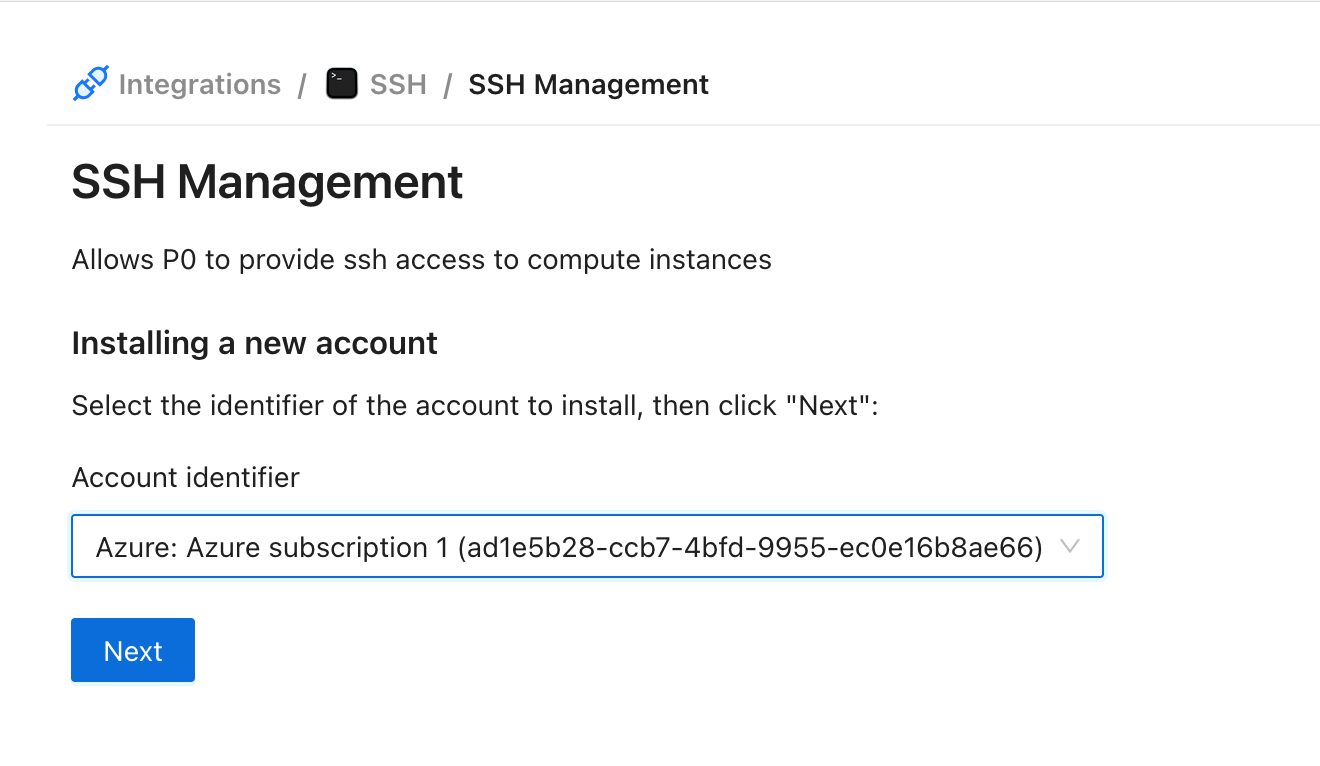
3. Select the Azure subscription you added during IAM management setup. Only subscriptions with a bastion host configured ([Configure bastion host integration](/integrations/resource-integrations/microsoft-azure/configure-bastion-host-integration.md)) appear in this list.
4. Confirm the connection. The VM-access roles and the bastion or jump host are already configured on the bastion host component ([Configure bastion host integration](/integrations/resource-integrations/microsoft-azure/configure-bastion-host-integration.md)), so the SSH install runs no role-creation commands for Azure. You don't run any Azure CLI commands in this step.
## Optional settings
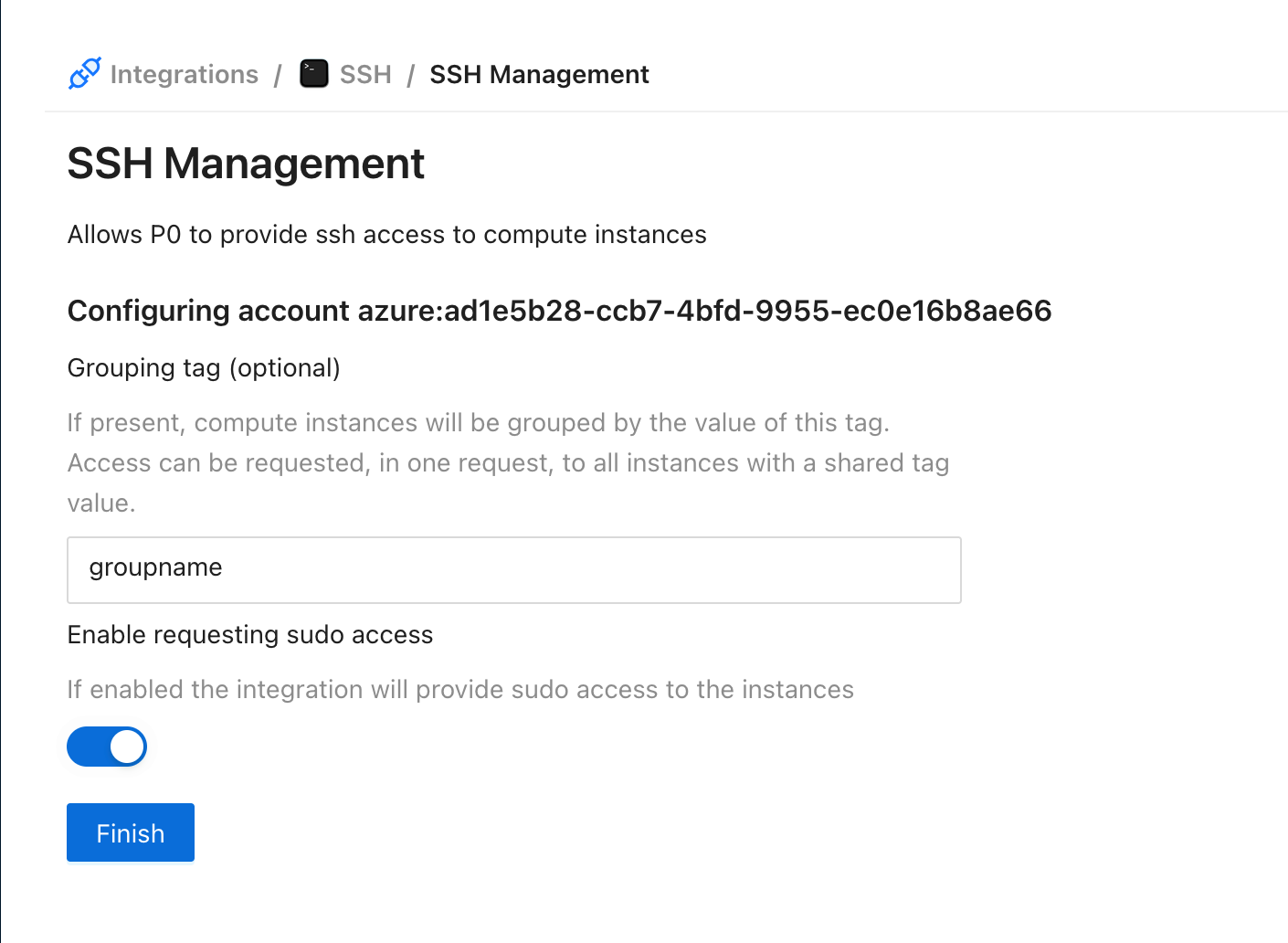
* **Grouping tag:** specify a tag to enable group SSH access requests
* **Allow sudo:** toggle whether users can request sudo on target nodes
Enabling **Allow sudo** lets requestors ask for sudo on target VMs. P0 grants sudo using the **Admin user role id** you configured on the bastion host component ([Configure bastion host integration](/integrations/resource-integrations/microsoft-azure/configure-bastion-host-integration.md)). There are no additional Azure CLI commands to run here.
### Requesting sudo
P0 assigns the **Admin user role id** at the target VM only when a request opts into sudo. Ask for sudo when you open the session:
```bash
p0 ssh web-prod-1 --provider azure --sudo
```
Escalating after you connect without `--sudo` doesn't work, because P0 never assigned the admin role for that session. Reconnect with `--sudo` instead.
{% hint style="info" %}
Enabling **Allow sudo** in P0 takes effect on the next request; you don't need to reinstall. Once P0 approves a sudo request, the CLI waits up to 3 minutes for the role assignment to reach the VM. It prints nothing while it waits, so the command looks like it's hanging — this is expected. Add `--debug` to see progress. If the wait times out, revoke the existing grant and request access again.
{% endhint %}
## Verify the installation
Confirm the installation succeeded before you hand it off to requestors:
1. In P0, open **Integrations → SSH** and confirm the subscription appears as connected.
2. Request SSH access to an Azure VM, as in [Requesting Microsoft Azure access](/integrations/resource-integrations/microsoft-azure/requesting-access.md), and confirm your target VMs appear in the list. Only VMs with the `AADSSHLoginForLinux` extension enabled appear here.
3. Complete a test SSH session to one of those VMs to confirm P0 can resolve your identity and establish the connection.
When these steps succeed, SSH access is installed and requestors can request SSH access to Azure VMs through P0, as in [Requesting Microsoft Azure access](/integrations/resource-integrations/microsoft-azure/requesting-access.md).
## Manage with the P0 Terraform provider
Instead of confirming the connection in the dashboard, you can install Azure SSH as code with the [P0 Terraform provider](https://registry.terraform.io/providers/p0-security/p0/latest) using the [`p0_ssh_azure`](https://registry.terraform.io/providers/p0-security/p0/latest/docs/resources/ssh_azure) resource. This is the recommended path for teams that manage their P0 configuration declaratively.
The `p0_ssh_azure` resource installs SSH for a single subscription. The VM-access roles P0 assigns and the Azure Bastion host or jump host P0 connects through are configured on the [`p0_azure_bastion_host`](https://registry.terraform.io/providers/p0-security/p0/latest/docs/resources/azure_bastion_host) component for the same subscription, not on `p0_ssh_azure`. Install the bastion host component first, as described for the Azure bastion host ([Azure bastion host](/integrations/resource-integrations/microsoft-azure/configure-bastion-host-integration/azure-bastion-host.md#manage-with-the-p0-terraform-provider)) or custom jump host ([Custom jump host](/integrations/resource-integrations/microsoft-azure/configure-bastion-host-integration/custom-jump-host.md#manage-with-the-p0-terraform-provider)) connection type.
For the full argument reference and a worked example, see the [`p0_ssh_azure` resource documentation](https://registry.terraform.io/providers/p0-security/p0/latest/docs/resources/ssh_azure).
## Ways to identify a VM
When you connect with `p0 ssh --provider azure`, P0 matches the destination you type against several identifiers for each VM. Use whichever is most convenient — they all resolve to the same VM.
| Identifier | Example | Description |
| ----------------- | -------------------------------------- | ---------------------------------------------------------------------------------------------------------------------------------------------------------------------- |
| Resource name | `web-prod-1` | The VM's Azure resource name. |
| OS computer name | `web-prod-01` | The hostname the VM's operating system reports (`osProfile.computerName`), which is what you see in the shell prompt. Use this when it differs from the resource name. |
| VM ID | `e194927e-5e34-4c89-8631-c4e67267d539` | The VM's stable, globally unique GUID (`vmId`) — the Azure equivalent of an AWS instance ID. |
| Public DNS name | `web-prod-1.eastus.cloudapp.azure.com` | The native Azure DNS name assigned to the VM's public IP (`dnsSettings.fqdn`), available when the public IP has a domain name label. |
| Custom FQDN tag | `web-prod-1.example.com` | The value of the VM's `fqdn` or `service_fqdn` tag, if you set one. |
| Public IP address | `20.10.1.5` | The VM's public IP address, if it has one. |
For example, these commands all reach the same VM:
```bash
p0 ssh web-prod-1 --provider azure
p0 ssh e194927e-5e34-4c89-8631-c4e67267d539 --provider azure
p0 ssh web-prod-1.eastus.cloudapp.azure.com --provider azure
```
{% hint style="info" %}
A VM appears only when it has the `AADSSHLoginForLinux` extension enabled, whichever identifier you use to target it. See [#virtual-machine-requirements](#virtual-machine-requirements "mention"). New or changed VMs become targetable after the next inventory cache refresh.
{% endhint %}
## Troubleshooting
| Symptom | Cause | Fix |
| ------------------------------------------------------------------------------- | ----------------------------------------------------------------------------------------------------------------------------------------------------------------- | ---------------------------------------------------------------------------------------------------------------------------------------------------------------------------------------------------------------------------------------------------------------------------------------------------------------------------------------------------------------------- |
| The subscription doesn't appear when you click **Add account** | The Bastion host isn't configured for that subscription | Complete [Configure bastion host integration](/integrations/resource-integrations/microsoft-azure/configure-bastion-host-integration.md) for the subscription, then retry. |
| A VM doesn't appear when you request SSH access | The `AADSSHLoginForLinux` extension isn't enabled on that VM | Enable the extension on the VM. P0 lists a VM only when the extension is enabled, so this applies to **every** target VM. See [#virtual-machine-requirements](#virtual-machine-requirements "mention"). |
| An SSH session fails with "Standard VM-access role is missing" | The bastion-host component has no **Standard user role id** for that subscription | Add the Standard user role id on the bastion host component ([Configure bastion host integration](/integrations/resource-integrations/microsoft-azure/configure-bastion-host-integration.md)) for the subscription, then retry. |
| A sudo request fails with "Admin VM-access role is required for sudo" | The bastion-host component has no **Admin user role id** for that subscription | Add the Admin user role id on the bastion host component ([Configure bastion host integration](/integrations/resource-integrations/microsoft-azure/configure-bastion-host-integration.md)), or disable sudo access requests. |
| An SSH session fails to start and P0 can't grant VM access | The `P0 Service Management` role wasn't created, because [IAM management](/integrations/resource-integrations/microsoft-azure/iam-management.md) wasn't completed | Complete [IAM management](/integrations/resource-integrations/microsoft-azure/iam-management.md) for the subscription. It creates the `P0 Service Management` role P0 uses to assign the VM-access role at session start. |
| An SSH session fails because P0 can't resolve the requesting user | Admin consent for `User.Read.All` wasn't granted during IAM management | Confirm admin consent was granted during [IAM management](/integrations/resource-integrations/microsoft-azure/iam-management.md) installation with an account that can consent on the tenant's behalf. |
| A session can't reach a VM in a different virtual network | The target VM's network isn't reachable from the Bastion host | Confirm the VM is in the same virtual network as the Bastion host or in a peered virtual network ([#virtual-network-peering](#virtual-network-peering "mention")). |
| Running `p0 ssh --provider azure` fails to generate an Azure AD SSH certificate | The Azure CLI `ssh` extension isn't installed on the requestor's machine, or it's installed but can't load | On the machine running `p0 ssh`, install the extension with `az extension add --name ssh`. If it's already installed but fails to load (usually after an Azure CLI or Python upgrade), reinstall it with `az extension remove --name ssh` followed by `az extension add --name ssh`. See [p0 ssh](/p0-cli/p0-commands-and-usage/p0-ssh.md#prerequisites) for `p0 ssh`. |
{% hint style="info" %}
**Existing customers:** If you previously configured Azure SSH, you do not need to rerun the SSH install steps. Your app registration already has the `User.Read.All` permission, granted either during a prior SSH install or by an installed Entra ID directory integration, so it continues to satisfy the requirement now owned by [IAM management](/integrations/resource-integrations/microsoft-azure/iam-management.md).
{% endhint %}