> For the complete documentation index, see [llms.txt](https://docs.p0.dev/llms.txt). Markdown versions of documentation pages are available by appending `.md` to page URLs; this page is available as [Markdown](https://docs.p0.dev/integrations/siem-integrations/datadog-setup.md).
# Datadog setup
Integration to send P0 audit logs to Datadog.
{% hint style="info" %}
The Datadog audit log integration is in beta. Functionality and configuration may change.
{% endhint %}
P0 integrates with Datadog Logs to forward audit logs from your P0 tenant to your Datadog instance.
## Prerequisites
* Existing P0 account at [p0.app](https://p0.app/)
* Datadog account with permissions to create API keys
* Datadog Logs intake URL for your region
## Set up Datadog logs intake
{% hint style="info" %}
This setup takes about 5 minutes.
{% endhint %}
1. Log in to [p0.app](https://p0.app) and select **Integrations**.
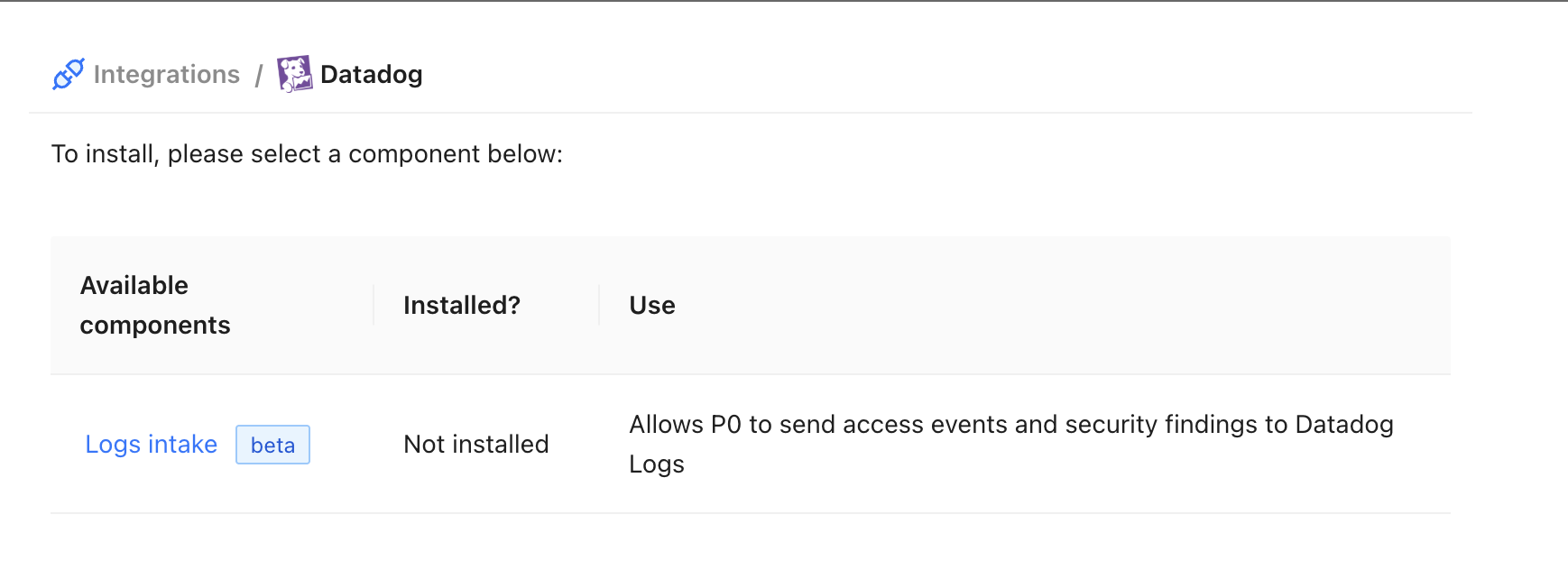
2. Under **Security Information & Event Managers**, select **Datadog**.
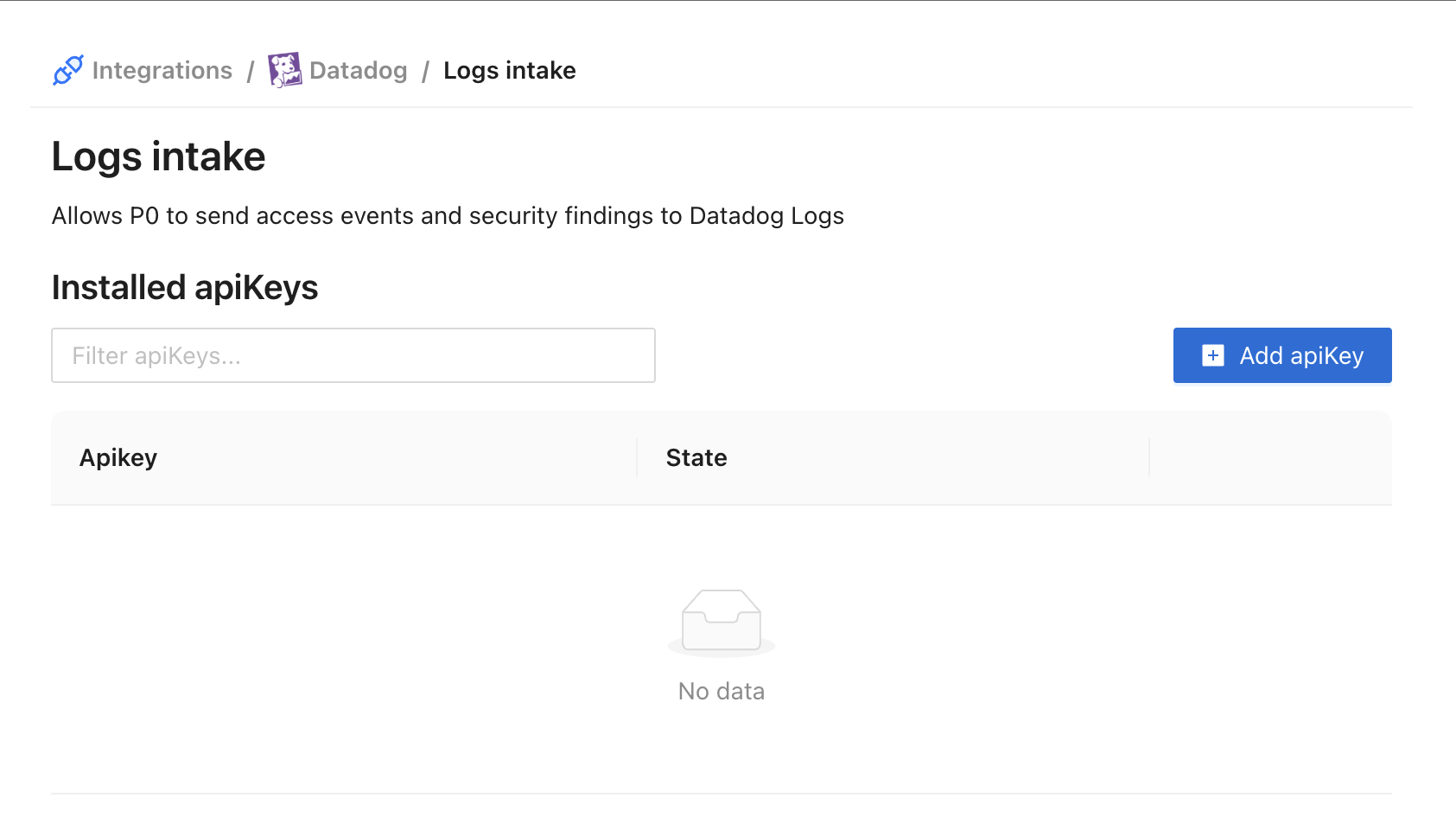
3. Click on **Logs intake** component.
4. Select **Add endpoint**.
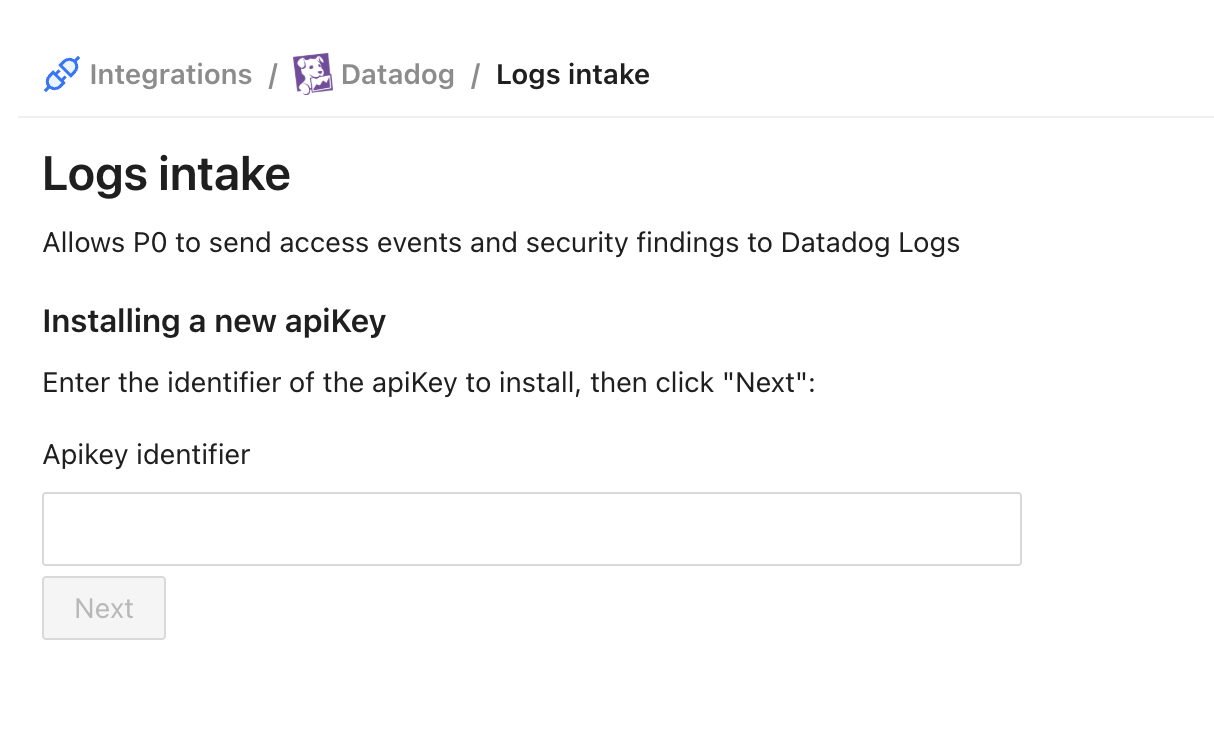
5. Enter a unique custom identifier and click **Next**.
6. Enter the desired configuration and click **Finish** to complete the installation. See [#configure-datadog-logs-intake](#configure-datadog-logs-intake "mention") for information about the settings.
## Configure Datadog logs intake
### Intake URL
The Datadog Logs intake URL varies by region. Use the appropriate URL for your Datadog site:
| Datadog Site | Intake URL |
| ------------ | -------------------------------------------- |
| US1 | `https://http-intake.logs.datadoghq.com` |
| US3 | `https://http-intake.logs.us3.datadoghq.com` |
| US5 | `https://http-intake.logs.us5.datadoghq.com` |
| EU | `https://http-intake.logs.datadoghq.eu` |
| AP1 | `https://http-intake.logs.ap1.datadoghq.com` |
{% hint style="info" %}
Refer to the [Datadog documentation](https://docs.datadoghq.com/getting_started/site/) to find your Datadog site.
{% endhint %}
### API key
You must provide a Datadog API key to authenticate log submissions. To create an API key:
1. In Datadog, navigate to **Organization Settings** > **API Keys**.
2. Click **New Key**.
3. Enter a name for the key (for example, "P0 Security").
4. Copy the key value and paste it into the P0 configuration.
{% hint style="info" %}
Refer to the official Datadog documentation for detailed instructions: [API and Application Keys](https://docs.datadoghq.com/account_management/api-app-keys/).
{% endhint %}
### Service
Optional service name for log attribution. If not specified, defaults to `p0`. This value appears in the `service` field of your Datadog logs, allowing you to filter P0 audit logs.
{% hint style="success" %}
Congratulations! You are now set up with Datadog audit logs integration.
{% endhint %}