> For the complete documentation index, see [llms.txt](https://docs.p0.dev/llms.txt). Markdown versions of documentation pages are available by appending `.md` to page URLs; this page is available as [Markdown](https://docs.p0.dev/integrations/resource-integrations/cisco-secure-access/installation.md).

# Installation

## Before you begin

### Prerequisites

To set up the Cisco Secure Access integration with P0, you need:

* **Cisco Secure Access account** with administrator privileges
* **Secure Access Connector** deployed and configured in your private network
* **Identity provider (IdP)** configured in Cisco Secure Access (for example, Okta, Microsoft Entra ID)
* **P0 account** with administrator access

### Required permissions

You must have the following permissions in Cisco Secure Access:

* **Administrator** or **API Admin** role
* Permission to create and manage API clients
* Permission to view and manage private resources
* Permission to configure access policies

## Setting up Cisco Secure Access

Each component requires its own API client in Cisco Secure Access with different permission scopes. You can either install only the Network access component or both, depending on your needs.

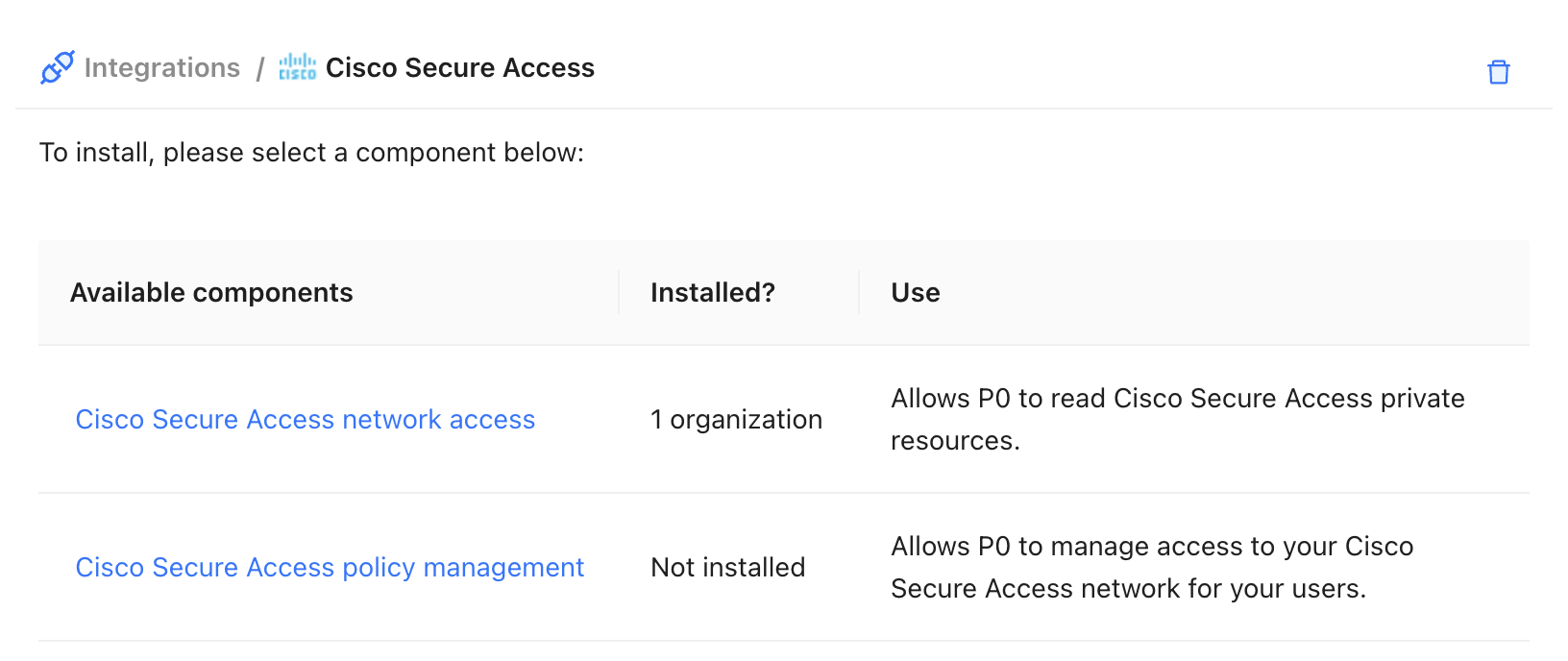
After you select **Cisco Secure Access** from the integrations list, P0 displays the available components:

<figure><img src="/files/NhGSgvUUAlNPUlLqEdBM" alt="Cisco Secure Access integration components"><figcaption><p>Select a component to install</p></figcaption></figure>

### Installing the network access component

This component allows P0 to look up the internally reachable addresses of your private resources in CSA. It only requires read-only permissions.

**Step 1: Create a read-only API client in CSA**

1. Log in to your **Cisco Secure Access Dashboard**.
2. Navigate to **Admin** > **API Keys**.
3. Click **Add**.
4. Configure the API key:
   * **Name**: `P0 Read-Only`
   * **Description**: `Read-only API key for P0 private resource discovery`
   * **Scope**: Select **Policies / Private Resources - Read-Only**
5. Click **Create** and save the generated API key and secret.

   <div data-gb-custom-block data-tag="hint" data-style="warning" class="hint hint-warning"><p>Both the API key and secret are 32-character hexadecimal strings. Store the secret securely—you cannot view it again after closing the creation window.</p></div>

**Step 2: Configure the component in P0**

1. Log in to [p0.app](https://p0.app).
2. Navigate to **Integrations** and select **Cisco Secure Access** under **Resources**.
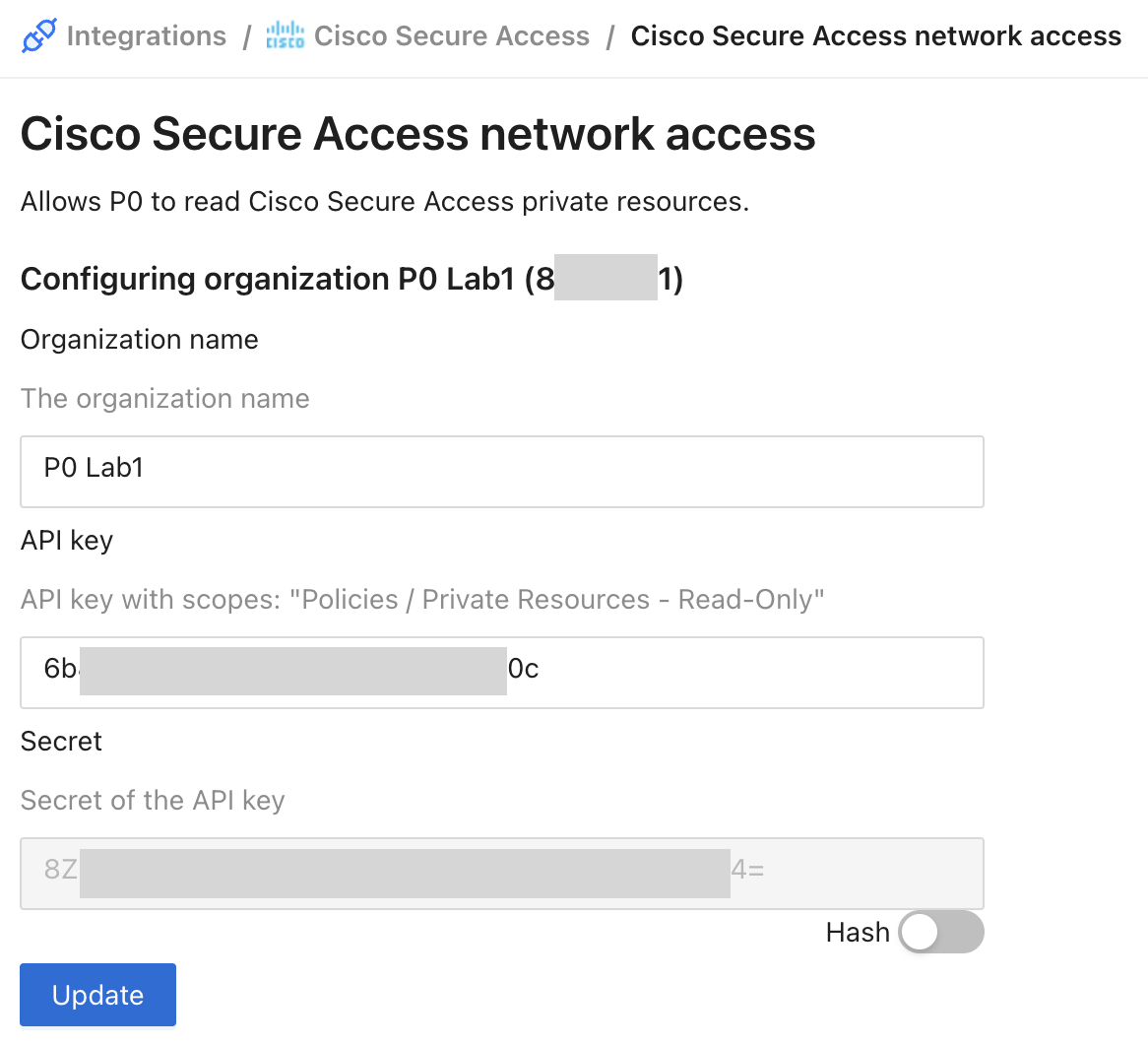
3. Select the **Cisco Secure Access network access** component and enter:

   | Field                 | Value                                                    |
   | --------------------- | -------------------------------------------------------- |
   | **Organization name** | A display name for your Cisco Secure Access organization |
   | **API key**           | The API key from Step 1                                  |
   | **Secret**            | The secret from Step 1                                   |

<figure><img src="/files/yPPHiGzh8bNFfqv8woc1" alt="Cisco Secure Access network access configuration" width="563"><figcaption><p>Network access component configuration</p></figcaption></figure>

4. Click **Update**.

{% hint style="success" %}
P0 can now discover and look up your private resources from Cisco Secure Access.
{% endhint %}

### Installing the policy management component

This component allows P0 to create and remove JIT access rules in your CSA access policy. It requires read and write permissions.

{% hint style="info" %}
You must install the network access component first. The policy management component links to an organization that you already configured in the network access component.
{% endhint %}

**Step 1: Create a read/write API client in CSA**

1. In the **Cisco Secure Access Dashboard**, navigate to **Admin** > **API Keys**.
2. Click **Add**.
3. Configure the API key:
   * **Name**: `P0 Policy Management`
   * **Description**: `Read/write API key for P0 JIT access policy management`
   * **Scopes**: Select both:
     * **Policies / Private Resources - Read-Only**
     * **Policies / Private Resources - Read / Write**
4. Click **Create** and save the generated API key and secret.

   <div data-gb-custom-block data-tag="hint" data-style="warning" class="hint hint-warning"><p>Both the API key and secret are 32-character hexadecimal strings. Store the secret securely—you cannot view it again after closing the creation window.</p></div>

**Step 2: Configure the component in P0**

1. Select the **Cisco Secure Access policy management** component.
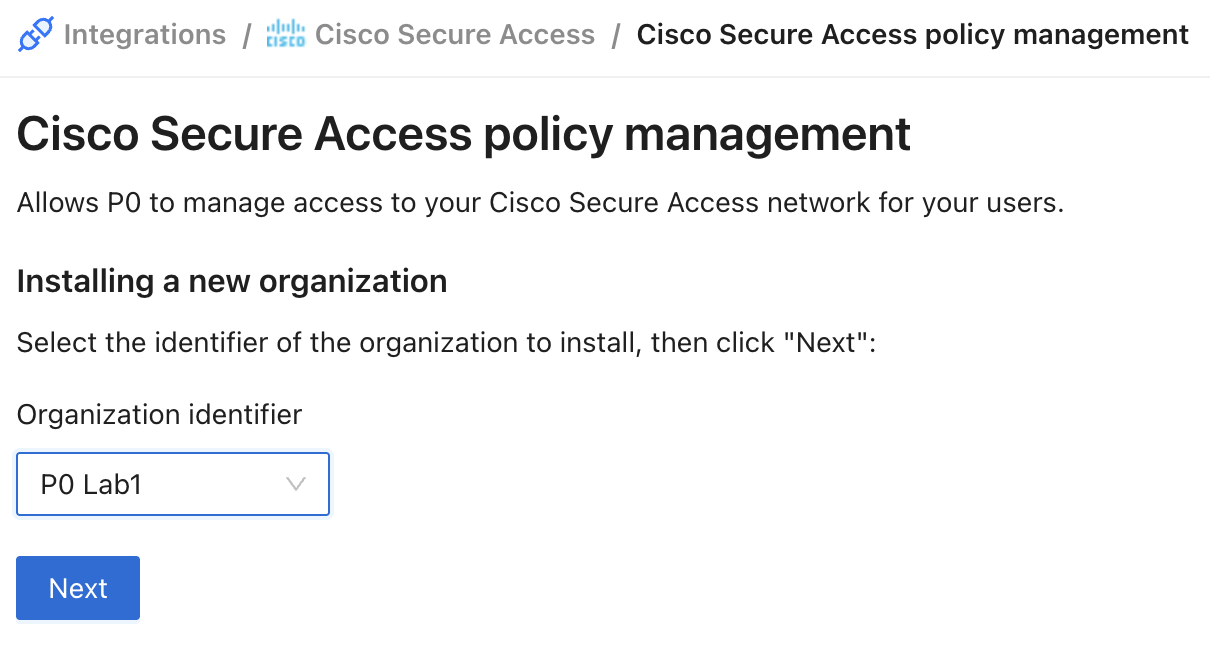
2. Select the **Organization identifier** for the organization you want to configure, then click **Next**.

<figure><img src="/files/WJVpA6gLMNMxk3pfYaSU" alt="Select the organization to configure" width="563"><figcaption><p>Select the organization to configure</p></figcaption></figure>

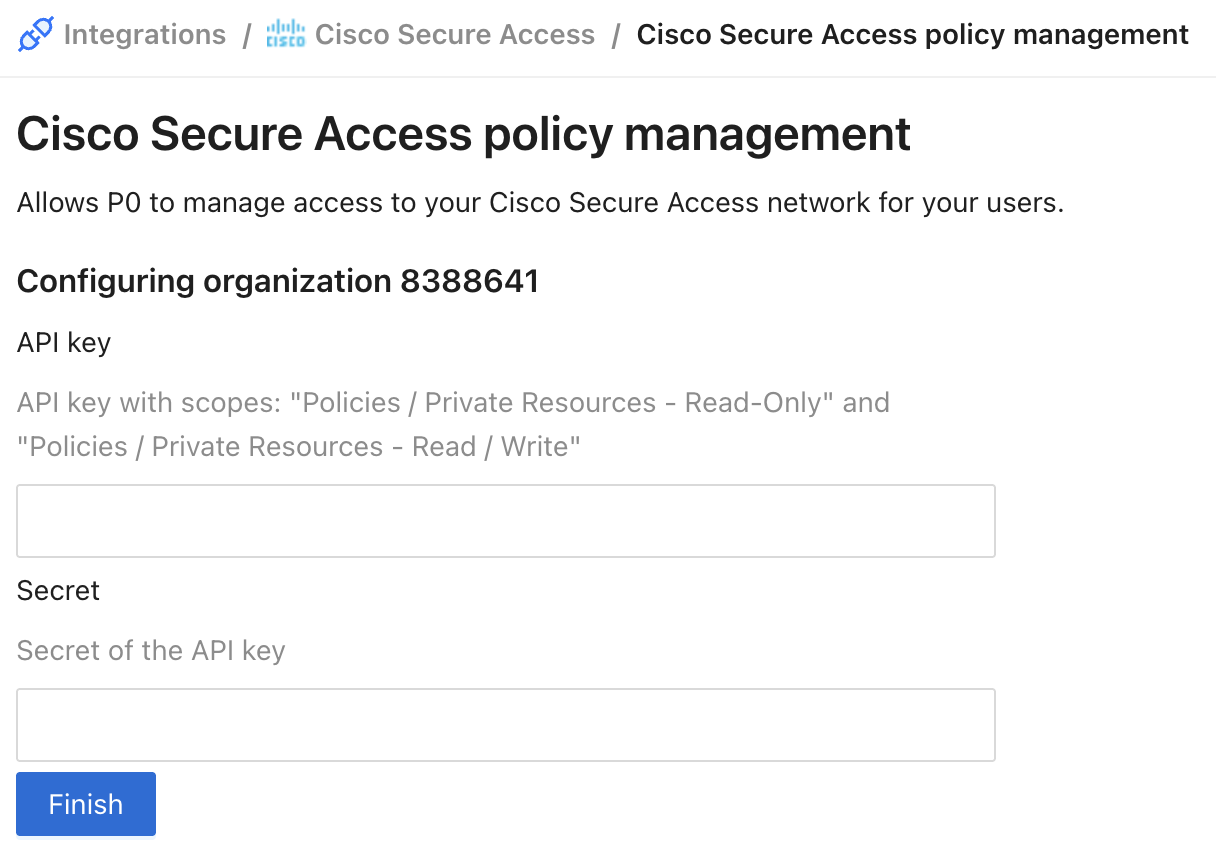
3. Enter the following:

   | Field       | Value                   |
   | ----------- | ----------------------- |
   | **API key** | The API key from Step 1 |
   | **Secret**  | The secret from Step 1  |

<figure><img src="/files/4hkNVtARnWWt3HcYS2OS" alt="Cisco Secure Access policy management configuration" width="563"><figcaption><p>Policy management component configuration</p></figcaption></figure>

4. Click **Finish**.

{% hint style="success" %}
P0 can now create and remove JIT access rules in your Cisco Secure Access access policy.
{% endhint %}


---

# Agent Instructions
This documentation is published with GitBook. GitBook is the documentation platform designed so that both humans and AI agents can read, navigate, and reason over technical content effectively. Learn more at gitbook.com.

## Querying This Documentation
If you need additional information that is not directly available in this page, you can query the documentation dynamically by asking a question.

Perform an HTTP GET request on the current page URL with the `ask` query parameter, and the optional `goal` query parameter:

```
GET https://docs.p0.dev/integrations/resource-integrations/cisco-secure-access/installation.md?ask=<question>&goal=<endgoal>
```

`ask` is the immediate question: it should be specific, self-contained, and written in natural language.
`goal` is optional and describes the broader end goal you are ultimately trying to accomplish on behalf of the user. GitBook uses it to tailor the answer towards what is most useful for that goal.

The response will contain a direct answer to the question and relevant excerpts and sources from the documentation.

Use this mechanism when the answer is not explicitly present in the current page, you need clarification or additional context, or you want to retrieve related documentation sections.